Three years ago, I watched my younger brother spend an entire weekend in a state of quiet panic that I genuinely felt helpless to address. He was a final-year architecture student, and he had accidentally deleted the project folder containing eighteen months of work — floor plans, 3D renders, material specifications, client correspondence, and the structural calculations for his graduate thesis project. He had been working late, tired and rushing to clear space on his hard drive before a deadline, and had permanently deleted the wrong folder.
The university submission deadline was four days away. His laptop had no cloud backup. His last USB drive backup was eight months old. And as far as he knew, the files were gone forever.
They were not. After two hours of working through the recovery process together, using a combination of the built-in system tools and one free third-party recovery application, we recovered approximately 94 percent of his deleted files, including every critical project document. He submitted his thesis on time. He graduated with distinction.
That experience taught me something that I have shared with everyone who has come to me in a similar panic ever since: deleted does not mean gone. At least not immediately. And understanding why — understanding the specific mechanics of how file deletion actually works on modern computers and smartphones, is the key to understanding why recovery is possible and exactly how to maximize your chances of success.
The accidental deletion of important files is one of the most universally experienced and most acutely distressing digital disasters in modern life. Whether it is a work document, a family photo collection, a music library, a video project, or years of personal records, the sudden disappearance of something irreplaceable produces a specific kind of panic that most people have experienced at least once — and that most people handle in exactly the wrong way, inadvertently reducing their recovery chances at the moment they most need to preserve them.
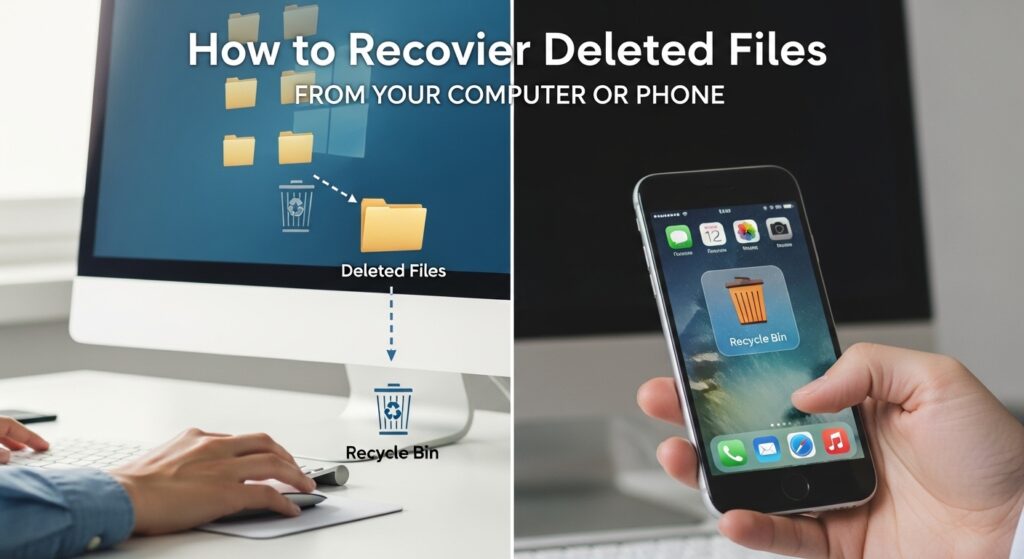
In this step-by-step tutorial, you will learn exactly how file deletion works, why deleted files can often be recovered, the specific steps to recover deleted files from Windows computers, Mac computers, Android phones, and iPhones, the best free recovery tools available in 2026, and the critical mistakes that reduce your recovery chances — so you never make them when it matters most.
How File Deletion Actually Works — The Science Behind Recovery
Understanding why deleted files are often recoverable requires a brief explanation of how your operating system manages file storage, because the mechanics are counterintuitive in ways that are both surprising and genuinely reassuring.
What Happens When You Delete a File
When you delete a file on a Windows or Mac computer — even when you empty the Recycle Bin or Trash, the operating system does not immediately erase the actual data contained in that file from your storage drive. Instead, it does something far less dramatic: it updates the file allocation table — the index that tracks which storage locations on your drive are occupied by which files — to mark the space previously occupied by the deleted file as available for reuse.
The actual data — the ones and zeros that constitute your deleted document, photo, or video — remains physically present on the storage drive until new data is written over that specific location. The file is invisible to the operating system and to the user because the index entry pointing to it has been removed, but the underlying data continues to exist until it is physically overwritten.
This is precisely why file recovery is possible — and precisely why time and continued use of the affected device are your biggest enemies after an accidental deletion. Every new file you save, every application you install, every download you complete after the deletion is a potential overwrite of the data you are trying to recover. The sooner you stop using the device and begin the recovery process, the greater your chances of successful recovery.
The Key Difference Between SSDs and HDDs for Recovery
The type of storage drive in your device significantly affects both the likelihood and the ease of file recovery, and this distinction is increasingly important as solid-state drives become the standard in modern computers and phones.
Hard Disk Drives (HDDs) — the traditional spinning magnetic storage drives found in older computers and some budget laptops, store data on physical magnetic platters. When a file is deleted, the data on those platters remains intact until physically overwritten, and recovery software can scan the drive surface to identify and reconstruct this orphaned data relatively effectively.
Solid State Drives (SSDs) — the faster, flash-memory-based storage found in most modern laptops, all smartphones, and Mac computers with Apple Silicon chips, present a more complex recovery situation. SSDs use a feature called TRIM — a maintenance process that proactively erases data in deleted storage blocks to maintain performance, which can cause deleted file data to be genuinely erased significantly faster than on an HDD. Recovery from an SSD is still possible, particularly if attempted quickly after deletion and before TRIM has processed the deleted blocks, but the window of opportunity is generally narrower.
The Recycle Bin and Trash — Your First Line of Defense
Before reaching for any recovery tool, always check your Recycle Bin on Windows or your Trash on Mac — because files deleted through normal means on a computer are typically moved here before any permanent deletion occurs. A file in the Recycle Bin or Trash has not been deleted in any meaningful sense, it is simply in a waiting area from which it can be instantly restored with a right-click and a restore command.
Files bypass the Recycle Bin and Trash and are immediately permanently deleted only in specific circumstances, when deleted using keyboard shortcuts that force permanent deletion, when files are too large for the Recycle Bin’s configured size limit, when the Recycle Bin has been manually emptied after the deletion, or when files are deleted from external drives or network locations on some operating systems.
Step 1 — Recovering Deleted Files on Windows
Windows provides several built-in recovery options that should be attempted before resorting to third-party software, and in many cases, these built-in tools are sufficient to recover recently deleted files without any additional software installation.
Method 1: Check the Recycle Bin First
Open the Recycle Bin by double-clicking its icon on the desktop. Browse or search for the deleted file. If you find it, right-click the file and select Restore to return it to its original location. If you need to restore it to a different location, right-click and select Cut, then navigate to the destination folder and paste it there.
If the Recycle Bin has been emptied or the file was permanently deleted without passing through it, proceed to the methods below.
Method 2: Restore Previous Versions Using File History
Windows includes a feature called File History — a built-in backup system that, when enabled, automatically saves copies of your files at regular intervals to an external drive or network location. If File History was active on your computer before the deletion occurred, you can use it to restore a previous version of the deleted file or folder.
To access Previous Versions, navigate to the folder where the deleted file was stored, right-click on the folder, and select Restore previous versions. Windows will display a list of available previous versions with their dates, select the version from before the deletion occurred and click Restore to recover the files it contains.
Important caveat: File History must have been set up and actively running before the deletion for this method to work. If you have never configured File History, this option will not be available, but this is an excellent time to set it up for future protection.
Method 3: Restore From Windows Backup
If you have been using Windows Backup or Backup and Restore to create system backups, you can restore deleted files from those backup archives. Go to Settings → Update and Security → Backup and follow the restore options to access your backup archive and retrieve the deleted files.
Method 4: Check OneDrive for Cloud Copies
If your deleted files were stored in a folder synchronized with Microsoft OneDrive, they may still be recoverable through OneDrive’s own deleted files retention system. Open OneDrive in your browser, navigate to the Recycle Bin within OneDrive, and check whether the deleted files are present. OneDrive retains deleted files for up to 30 days for standard accounts and up to 93 days for Microsoft 365 subscribers before permanently purging them.
Method 5: Use Free Recovery Software
If the built-in Windows recovery options are unavailable or unsuccessful, third-party data recovery software offers the most powerful remaining option for recovering permanently deleted files from Windows computers.
Recuva — developed by Piriform, the same company behind CCleaner — is widely considered the best free data recovery tool for Windows and consistently ranks among the top recommendations from data recovery professionals for consumer use. It features a straightforward wizard-based interface that guides you through the recovery process step by step, a deep scan mode that searches for file traces even when standard scanning finds nothing, and support for recovering files from hard drives, SSDs, USB drives, and memory cards.
To use Recuva effectively, download and install it on a different drive from the one containing the deleted files — installing recovery software on the same drive you are trying to recover from risks overwriting the data you need to recover. Run the deep scan on the affected drive, review the list of recoverable files — Recuva color-codes files by recovery probability, with green indicating excellent recovery condition — and save any recovered files to a different drive from the source.
PhotoRec — despite its name, is a powerful free open-source recovery tool that recovers a wide range of file types beyond just photos. It is more technically demanding to use than Recuva but often recovers files that simpler tools miss, making it an excellent second option when Recuva’s results are incomplete.
TestDisk — frequently used alongside PhotoRec, is specifically designed for recovering lost partitions and repairing damaged file systems that prevent files from being accessible, making it the appropriate tool when an entire drive or partition has become inaccessible rather than specific files being deleted.
Step 2 — Recovering Deleted Files on Mac
Mac computers offer their own set of built-in recovery options that reflect Apple’s ecosystem integration, and like Windows, these built-in tools should always be exhausted before turning to third-party software.
Method 1: Check the Trash
Open the Trash by clicking its icon in the Dock. If your deleted file is present, right-click it and select Put Back to restore it to its original location, or drag it to any folder of your choice. Empty Trash on Mac moves files to genuinely unrecoverable status more quickly than some users realize, particularly on Macs with SSD storage and TRIM enabled, so check the Trash immediately after any accidental deletion.
Method 2: Restore From Time Machine
Time Machine is Apple’s built-in backup system and one of the most elegant file recovery solutions available on any consumer operating system. When configured with an external backup drive, Time Machine automatically creates hourly backups for the past 24 hours, daily backups for the past month, and weekly backups for all previous months, giving you a comprehensive archive of your file system at multiple points in time.
To recover a deleted file using Time Machine, connect your Time Machine backup drive, open the folder where the deleted file was stored, then click the Time Machine icon in the menu bar and select Enter Time Machine. Use the timeline on the right side of the screen to navigate to a point in time before the file was deleted, locate the file in the restored view, and click Restore to return it to your current file system.
Time Machine is so effective as a recovery tool that setting it up immediately — if you have not already, is one of the most important digital hygiene steps any Mac user can take. The initial backup takes time, but the ongoing automated protection it provides is invaluable. (For a complete guide to setting up cloud and physical backup systems that protect all your important files, check out our guide on [A Beginner’s Guide to Cloud Storage: Choosing Between Google Drive, iCloud, and OneDrive].)
Method 3: Check iCloud Drive for Deleted Files
If the deleted file was stored in your iCloud Drive folder, navigate to iCloud.com in your browser, log in with your Apple ID, and open the iCloud Drive web app. Click the Recently Deleted folder in the sidebar, iCloud retains deleted files for 30 days before permanently removing them, giving you a meaningful recovery window for files deleted from synchronized folders.
Method 4: Use Terminal for Recently Deleted Files
For technically comfortable Mac users, the Terminal command line interface provides access to file system operations that can sometimes retrieve recently deleted file traces that the Trash interface does not surface. This method requires comfort with command line tools and is recommended only for users who are familiar with Terminal, an incorrect Terminal command can cause additional unintended file system changes.
Method 5: Use Free Mac Recovery Software
Disk Drill offers a free tier that allows you to scan for recoverable files and preview recovery results — giving you confirmation that your target files are recoverable before committing to a recovery action. The free tier limits the amount of data you can actually recover without purchasing, but the scan and preview capability alone is valuable for assessing your situation.
PhotoRec — the same cross-platform open-source tool mentioned in the Windows section — is fully functional on Mac and offers powerful deep recovery capabilities for a wide range of file types at no cost.
TestDisk similarly is available and fully functional on Mac for partition-level recovery scenarios.
For more serious data loss situations on Mac — particularly those involving SSD storage where TRIM may have already processed deleted blocks, professional data recovery services may be the most realistic option for files of genuinely critical importance.
Step 3 — Recovering Deleted Files on Android Phones
Recovering deleted files from Android smartphones presents different challenges and opportunities compared to computers — partly because the recovery process varies significantly between different Android manufacturers and operating system versions, and partly because Android’s storage architecture has evolved in ways that affect recovery prospects.
Method 1: Check the Gallery App’s Trash or Recently Deleted
Most modern Android smartphones — including devices from Samsung, Google, OnePlus, and other major manufacturers — include a Trash or Recently Deleted folder within the native Gallery or Photos application that retains deleted photos and videos for 30 days before permanent deletion.
Open your phone’s Gallery or Photos application, tap the menu icon or the three-dot overflow menu, and look for an option labeled Trash, Recently Deleted, or Bin. If your deleted photos or videos are present, select them and tap Restore to return them to your main photo library.
This should always be your first action after accidentally deleting photos or videos from an Android device — the majority of recent photo deletions are recoverable through this method without any additional tools or technical steps.
Method 2: Check Google Photos Trash
If you use Google Photos — which is pre-installed on many Android devices and set as the default photo management application on Google Pixel phones, deleted photos and videos are moved to the Google Photos Trash folder rather than being immediately permanently deleted.
Open the Google Photos application, tap the Library tab at the bottom of the screen, then tap Trash. Deleted photos and videos are retained in the Google Photos Trash for 60 days — a generous recovery window that saves significant numbers of accidental deletions. Select the files you want to recover and tap Restore.
Method 3: Check Cloud Backup Services
If your Android phone has been automatically backing up photos and videos to Google Photos, Google Drive, Samsung Cloud, Dropbox, or any other cloud service, deleted files may still be accessible through these services’ own recovery systems even if they have been permanently deleted from your device’s local storage.
Log into each cloud service you use and check their respective Trash or Recently Deleted sections, different services retain deleted files for different periods, typically ranging from 30 to 90 days.
Method 4: Use Android Data Recovery Software
For files deleted from Android devices that cannot be recovered through the built-in methods above — particularly non-photo files like documents, audio recordings, and contacts — dedicated Android recovery software can sometimes retrieve deleted data by scanning the device’s storage directly.
DiskDigger is one of the most widely used free Android recovery applications, available directly from the Google Play Store. It can scan your device’s storage for deleted photo and video files without requiring your phone to be rooted, and offers a paid upgrade for recovering additional file types.
Dr.Fone and Wondershare Recoverit are more comprehensive recovery platforms that support Android file recovery through a desktop application, connecting your Android phone to a computer and scanning its storage through the desktop interface. These tools offer free scan and preview capabilities with paid recovery, and they support a broader range of file types than many mobile-only recovery applications.
Important note for Android recovery: The effectiveness of third-party Android recovery tools has been significantly reduced on modern Android devices running Android 11 and later, due to enhanced storage permissions that limit third-party application access to storage areas where deleted file data resides. Recovery prospects are significantly better for older devices or for devices that have been rooted, though rooting carries its own significant risks and should not be undertaken casually.
Step 4 — Recovering Deleted Files on iPhones and iPads
iPhone and iPad recovery presents the most constrained recovery environment of all the platforms covered in this guide, primarily because Apple’s iOS security architecture is specifically designed to prevent the kind of direct storage access that third-party recovery tools rely on for scanning deleted file data.
Method 1: Check the Photos App Recently Deleted Album
Open the Photos application, tap the Albums tab at the bottom, scroll down to the Utilities section, and tap Recently Deleted. Photos and videos deleted from your iPhone’s Photos library are retained in this album for 30 days before being permanently purged.
Select the photos or videos you want to recover and tap Recover to restore them to your main Photos library. This method is effective for the vast majority of accidental photo and video deletions on iPhone and should always be the first action taken.
Method 2: Recover From iCloud Photos
If iCloud Photos is enabled on your iPhone — which automatically uploads your entire photo library to iCloud, deleted photos can be recovered through the iCloud Recently Deleted folder even after they have been removed from your device.
Navigate to iCloud.com in any browser, log in with your Apple ID, open the Photos web app, and click Recently Deleted in the left sidebar. Photos and videos deleted from iCloud Photos are retained for 30 days and can be recovered by selecting them and clicking Recover.
Method 3: Restore From iCloud Backup
If you maintain regular iCloud backups of your iPhone — which can be configured in Settings → Your Name → iCloud → iCloud Backup — restoring your phone from a backup created before the deletion occurred will recover deleted files alongside everything else present on the device at that backup point.
The significant limitation of this method is that restoring from an iCloud backup replaces your phone’s current state entirely with the backup state, meaning any data created or changed since the backup was made will be lost in the restoration process. This is a meaningful trade-off that should be carefully considered before proceeding, particularly if the backup predates the deletion by a significant period.
Go to Settings → General → Transfer or Reset iPhone → Erase All Content and Settings, then follow the setup process and select Restore from iCloud Backup when prompted, choosing the most recent backup from before the deletion occurred.
Method 4: Restore From iTunes or Finder Backup
If you regularly connect your iPhone to a computer and back it up through iTunes (on Windows or older Macs) or Finder (on Macs running macOS Catalina and later), restoring from a local backup offers the same recovery capability as an iCloud restore but potentially with a more recent backup point if your local backups were more frequent than your iCloud backups.
Connect your iPhone to the computer where your backup is stored, open iTunes or Finder, select your device, and choose Restore Backup. Select the most recent backup from before the deletion occurred and allow the restoration to complete.
Method 5: Third-Party iPhone Recovery Tools
Several commercial data recovery platforms offer iPhone recovery capabilities through desktop applications — including Dr.Fone, iMobie PhoneRescue, and Tenorshare UltData. These tools work by scanning iCloud backups or iTunes backups for recoverable file data rather than directly accessing iPhone storage — which means their effectiveness depends on whether a backup containing the deleted files exists.
Free trial versions of these tools typically allow you to scan for recoverable files and preview results, with the actual recovery requiring a paid license. For truly critical iPhone data that cannot be recovered through Apple’s built-in methods, these tools are worth evaluating — with the realistic expectation that their capabilities are more constrained than equivalent tools for Windows or Android.
Step 5 — Recovery Software for External Drives, USB Drives, and Memory Cards
External storage devices — USB flash drives, external hard drives, and SD or microSD memory cards from cameras and other devices — are subject to the same file recovery principles as internal computer storage, and in many cases are more recoverable because they typically lack the TRIM functionality that accelerates data erasure on SSD storage.
The Best Free Tools for External Storage Recovery
Recuva — mentioned in the Windows section — is equally effective for recovering deleted files from external drives and USB storage when those drives are connected to a Windows computer. Run Recuva and select the specific external drive or USB device as the scan target.
PhotoRec is particularly powerful for recovering photos, videos, and documents from memory cards — making it one of the most recommended tools for photographers who have accidentally formatted a camera memory card before transferring their images.
TestDisk addresses the common scenario where an external drive or USB stick has become entirely unreadable — showing as unformatted or displaying no files despite previously containing data. It can often repair the damaged partition table or file system that is causing the inaccessibility and restore access to the drive’s contents without any data loss.
Recovering From an Accidentally Formatted Drive
Accidentally formatting a drive — particularly a camera memory card or a USB stick — is one of the most common and most distressing forms of data loss. The good news is that a quick format — the default format type in most operating systems — does not immediately erase data any more than a file deletion does. It simply rebuilds the file system index, marking all existing data as available for overwriting.
Stop using the formatted drive immediately after realizing the mistake — do not take any new photos, do not save any new files, do not allow any automatic processes to write to the drive. Connect it to a computer and run PhotoRec or Recuva’s deep scan mode, which can recover files from formatted drives by scanning for file signature patterns rather than relying on the file system index that the format process rebuilt.
When to Consider Professional Data Recovery Services
While the free tools and built-in methods covered in this guide handle the majority of typical accidental deletion scenarios successfully, there are situations where the appropriate response is professional data recovery service rather than DIY recovery attempts.
Professional data recovery is appropriate when your storage drive has suffered physical damage — unusual clicking, grinding, or beeping sounds from a hard drive are symptoms of mechanical failure that require specialist clean-room recovery techniques unavailable to consumer software. Attempting software recovery on a physically damaged drive can cause additional damage that makes professional recovery less likely to succeed.
Professional recovery is also appropriate when the data involved is of genuinely critical professional or personal importance and all free recovery options have failed to produce results. Professional data recovery services — companies like DriveSavers and Ontrack in the United States, use specialized hardware and techniques that can recover data from drives that consumer software cannot access, though their services are expensive, often ranging from several hundred to several thousand dollars depending on the complexity of the recovery.
Before engaging a professional recovery service, request a free evaluation — most reputable providers offer this, to confirm that recovery is possible and to receive a specific price quote before committing to the service.
Critical Mistakes That Reduce Your File Recovery Chances
The actions most people instinctively take immediately after a deletion are often precisely the ones most likely to permanently destroy the data they are trying to recover:
- Continuing to use the device normally after discovering the deletion: Every file you save, every application you open, every download you complete on the affected device after the deletion is a potential overwrite of your deleted data. Stop using the device immediately and begin the recovery process as quickly as possible.
- Installing recovery software on the same drive you are trying to recover from: Installing any software on the affected drive writes new data that may overwrite the deleted files you need. Always install recovery software on a separate drive and save recovered files to a third drive — never to the source drive.
- Running multiple recovery tools simultaneously: Running several recovery tools at the same time causes them to compete for drive access and significantly increases the amount of read activity on the affected drive — which, paradoxically, increases the risk of data overwrite. Use one tool at a time, in order from least invasive to most invasive.
- Rebooting the device repeatedly hoping the files will reappear: Rebooting causes operating system processes to write temporary files and page file data that can overwrite deleted file locations. Minimize reboots on the affected device until recovery is complete.
- Panicking and attempting to manually recreate deleted files from memory: No amount of manual recreation compensates for original file loss when the originals may still be recoverable. Prioritize recovery attempts before accepting the files as permanently lost.
- Not having a backup system in place before the emergency: The most reliable recovery from any data loss is restoration from a backup made before the loss occurred. If this experience has highlighted the absence of a backup system in your digital life, let it be the motivation to implement one immediately, because the next data loss event is a question of when, not whether.
Conclusion and Final Thoughts
Deleted does not mean gone, at least not immediately, and not always permanently. The mechanics of how modern operating systems handle file deletion create a genuine window of recovery opportunity that the right tools and the right actions can exploit to rescue data that most people assume is irretrievably lost.
The step-by-step recovery paths covered in this guide — Windows built-in tools and Recuva, Mac Time Machine and Disk Drill, Android Gallery Trash and Google Photos, iPhone Recently Deleted and iCloud restore, and external storage recovery with PhotoRec and TestDisk — cover the vast majority of accidental deletion scenarios that real people encounter in real life, and the majority of them involve completely free tools that are available right now.
My brother submitted his thesis on time and graduated with distinction. The eighteen months of work that he thought he had permanently destroyed in a moment of tired carelessness were almost entirely recoverable, because we moved quickly, used the right tools, and avoided the mistakes that would have made permanent loss inevitable.
If you are reading this in the middle of a data loss emergency, stop reading, stop using the affected device, and begin working through the recovery steps for your specific platform immediately. Time is your most valuable resource right now.
If you are reading this before any emergency has occurred, which is the ideal time to be learning this information, use it as the motivation to implement the backup systems that make file recovery a convenient restoration process rather than a desperate rescue operation. Cloud backup, Time Machine, File History, and regular manual backups cost a fraction of the stress, time, and potential permanent loss that an unprotected deletion event produces.
Have you ever successfully recovered deleted files using any of these methods, or are you currently working through a data loss situation where this guide has helped? Share your experience in the comments below. Your story of what worked, or what you wish you had known sooner — could be exactly the guidance another reader needs in the middle of their own data emergency.