Last year, during a family road trip that I had been looking forward to for months, I pulled out my phone at exactly the moment I needed it most, standing at the entrance of a national park with no cell signal ahead, needing to download offline maps before we lost connectivity, and discovered my battery was at 4 percent. I had charged it to 100 percent that morning. It was barely noon.
I had not been using my phone heavily. I had taken a few photos, checked the route twice, and responded to a handful of messages. There was no obvious explanation for why nearly a full day’s worth of battery had evaporated in four hours.
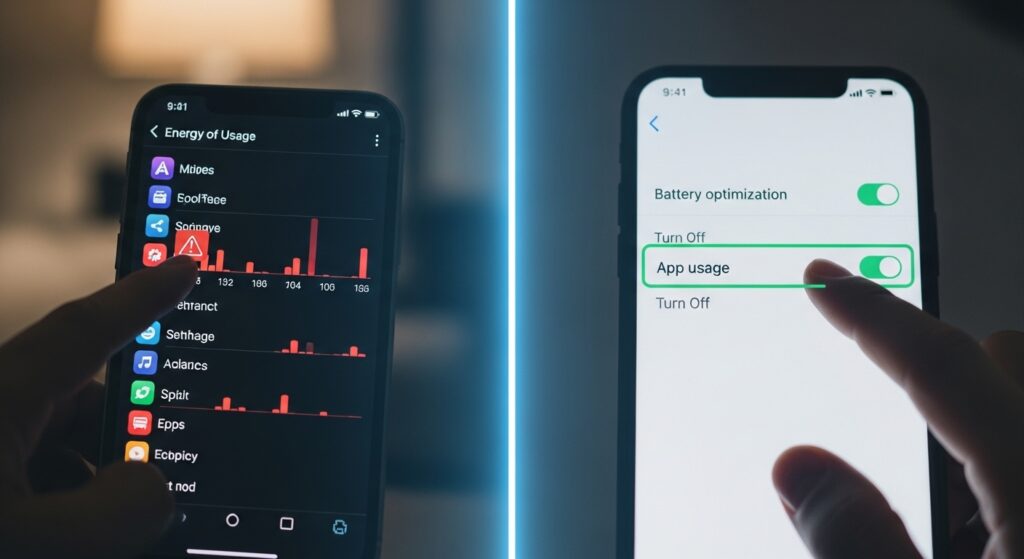
The explanation, as I discovered that evening when I finally had time to dig into my battery settings, was entirely invisible to me during the day. Four applications I had installed weeks earlier and barely used consciously were running continuously in the background, one was refreshing its content every fifteen minutes, one was tracking my location constantly for a feature I had never activated, one was maintaining a persistent network connection to sync data I did not need in real time, and one was running background processing tasks related to a photo editing feature I had used exactly once. Together, they had consumed 67 percent of my battery without a single conscious interaction on my part.
That experience, and the thirty minutes I subsequently spent understanding and addressing background app behavior, permanently changed both how I manage my devices and how I think about the relationship between what I consciously do with my phone and what my phone is doing without my knowledge or permission.
Background app battery drain is one of the most universal and most consistently misunderstood causes of poor device battery life. Most people blame their battery hardware, assuming the battery has aged, degraded, or is simply not large enough for their needs, when the actual cause is software behavior that is entirely detectable and entirely controllable once you know where to look and what to do.
In this guide, you will learn exactly how background app activity drains your battery, how to detect which specific applications are responsible for the drain on both Android and iPhone devices, how to stop or limit that drain using the built-in tools available on every modern smartphone, how to apply the same principles to Windows and Mac laptops, and the battery management habits that will keep your devices running longer every single day from this point forward.
H2: Understanding How Background Apps Actually Drain Your Battery
Before we get into the detection and solutions, it is worth understanding precisely how and why background app activity consumes battery power, because this understanding makes every subsequent step more intuitive and more actionable.
What Background App Activity Actually Means
When we talk about background app activity, we are referring to any processing, networking, location access, or other computational work that an application performs while it is not the active, visible application on your screen. This activity happens without your direct awareness or involvement — which is both what makes it useful in some cases and what makes it problematic in others.
Background activity can take many forms. An email application checking for new messages every few minutes. A navigation application maintaining a GPS lock even when you are not actively navigating. A social media application refreshing its feed and sending push notification checks on a regular schedule. A fitness application tracking your movement continuously throughout the day. A music streaming application maintaining a network connection and buffering content. A cloud storage application monitoring your photo library for new images to upload.
Each of these background activities serves a legitimate purpose — but each also consumes battery power to perform that purpose. The question for any individual user is whether the background activity of each specific application provides enough value to justify the battery cost it imposes, and whether that activity can be modified or limited without eliminating the value you actually use.
The Four Primary Ways Background Apps Consume Battery Power
Network activity is typically the largest single contributor to background battery drain. Every time an application checks for new data, new messages, new notifications, updated content, synchronized files, it activates your device’s radio hardware, establishes a network connection, transfers data, and then releases the connection. Each of these operations consumes battery power, and applications that perform this cycle frequently, every few minutes rather than every hour, impose a continuous battery cost that accumulates significantly over a full day.
Location services are the second major contributor for many users. GPS location tracking is one of the most power-intensive operations a smartphone performs, and applications with access to Always On location permission can request your precise GPS location continuously, even when running entirely in the background. A single navigation application or fitness tracker with always-on location access can impose a meaningful battery drain simply by maintaining continuous GPS awareness, even when you are not actively using those features.
Background processing covers the computational work applications perform in the background, indexing content, processing downloaded media, running synchronization algorithms, performing machine learning inference for features like photo analysis or content recommendations. Modern smartphones are powerful enough to perform significant processing while appearing idle to the user, and this processing consumes battery proportional to its computational intensity.
Push notification infrastructure involves the persistent connections many applications maintain with their servers to receive push notifications instantly rather than checking for them periodically. While individual push connections are relatively lightweight, the cumulative effect of dozens of applications each maintaining their own persistent connection creates a meaningful ongoing battery load.
Step 1 — Detecting Background Battery Drain on iPhone
Apple’s iOS provides genuinely detailed battery usage analytics that allow you to identify exactly which applications are consuming the most battery power, both from foreground use and from background activity specifically.
Accessing the iOS Battery Usage Screen
Navigate to Settings → Battery on your iPhone. Allow the screen a moment to load, it displays a summary of your battery usage over the past 24 hours and the past 10 days, broken down by application.
The application list is sorted by battery consumption in descending order, the highest consumers appear at the top. Each entry shows the percentage of your total battery usage attributed to that application. Tap Show Activity in the upper right corner of the application list to expand the view and see each application’s usage broken down into On Screen time, usage while the app was actively displayed, and Background time, usage while the app was running behind the scenes.
This breakdown is the critical diagnostic information. An application that consumed 15 percent of your battery with 45 minutes of on-screen time is behaving normally, you were actively using it. An application that consumed 12 percent of your battery with 2 minutes of on-screen time and 3 hours of background time is a background drain problem that warrants immediate attention.
Understanding the Battery Health and Charging Section
While in the Battery settings screen, tap Battery Health and Charging to review your battery’s maximum capacity, expressed as a percentage of its original design capacity. A battery at 100 percent is new and fully capable. As batteries age and cycle through charges, their maximum capacity gradually decreases. Apple indicates that a battery retaining above 80 percent of its original capacity is functioning within normal parameters.
If your battery health is significantly below 80 percent, hardware degradation is contributing meaningfully to your battery life issues alongside any software causes. In this case, addressing background app behavior will still improve your battery life, but a battery replacement through Apple or an authorized service provider may also be appropriate.
Using Screen Time Data for Additional App Insights
Settings → Screen Time provides complementary data about your application usage patterns — showing which applications you use most frequently and for how long each day. Comparing this data with the Battery usage data helps you identify applications that consume disproportionate battery power relative to how much you actually use them — the clearest possible signal that background activity rather than foreground use is driving the consumption.
Step 2 — Detecting Background Battery Drain on Android
Android provides battery usage analytics that are broadly similar to iOS in concept but vary somewhat in their presentation and specificity across different Android manufacturers and operating system versions.
Accessing Android Battery Usage Analytics
On stock Android (Google Pixel devices), navigate to Settings → Battery → Battery Usage. The screen displays a list of applications sorted by battery consumption over the past 24 hours, with each application’s usage expressed as a percentage of total battery consumption.
On Samsung Galaxy devices running One UI, navigate to Settings → Battery and Device Care → Battery → Battery Usage for a similar application-level breakdown. Samsung’s implementation also includes a Background Usage Limits feature that we will address in the solutions section.
On other Android manufacturers including OnePlus, Xiaomi, Oppo, and others, the path to battery usage analytics varies but is typically found within the Settings application under Battery or Device Care. The specific menu names and paths differ, but the underlying data is generally available on all modern Android devices.
Reading the Android Battery Usage Data
Like iOS, the most revealing information in Android’s battery usage data is the relationship between an application’s foreground use time and its background use time. Applications with significant background time relative to their foreground time are your primary candidates for background drain management.
Some Android manufacturers provide more granular background activity data than others. Google Pixel devices running recent Android versions show particularly detailed breakdowns of the specific types of background activity each application is performing, network access, location access, and wake locks (instances where the application prevented the device from entering a low-power sleep state) — which makes targeted intervention significantly easier.
Using Android’s Built-in Battery Drain Indicators
Recent versions of Android include adaptive battery features that the operating system uses to automatically identify and restrict background activity for applications you use infrequently. Navigate to Settings → Battery → Adaptive Battery to verify this feature is enabled. When active, it learns your usage patterns over time and applies increasingly strict background restrictions to applications that do not appear in your regular usage patterns.
Android also provides battery optimization status information for each application, showing whether the application is being actively managed by the system’s battery optimization or has been exempted from it. Access this by going to Settings → Battery → Battery Optimization (or App Power Management on Samsung devices) and reviewing the list of applications not being optimized — these exempted applications are running with fewer restrictions on their background activity.
Step 3 — Stopping Background Battery Drain on iPhone
With the battery-hungry applications identified, the following tools and techniques allow you to systematically reduce their background impact on your iPhone’s battery life.
Control Background App Refresh
Background App Refresh is iOS’s system that allows applications to update their content in the background so they display fresh information when you open them. It is one of the most significant and most easily controllable sources of background battery drain on iPhone.
Navigate to Settings → General → Background App Refresh. You have three options at the top level: Off (disables Background App Refresh for all applications entirely), Wi-Fi (allows background refresh only when connected to Wi-Fi, significantly reducing the network radio activity associated with cellular data background refreshing), and Wi-Fi and Cellular Data (the default, which allows background refreshing on any available connection).
Selecting Wi-Fi rather than Wi-Fi and Cellular Data immediately reduces the battery impact of background refreshing by restricting it to the periods when your phone is connected to Wi-Fi — which for most people represents the times when battery conservation matters least (at home or at a desk with access to charging) and eliminates background cellular refreshing during the on-the-go periods when battery conservation matters most.
Below the top-level setting, you can also control Background App Refresh on a per-application basis, toggling it off individually for applications where real-time background content updates are unnecessary. Social media applications, news aggregators, and content applications are typically the highest value targets for individual background refresh disabling, because the marginal value of having their content pre-loaded when you open them is low relative to the battery cost of the continuous background updating required to maintain it.
Manage Location Services Permissions
Navigate to Settings → Privacy and Security → Location Services. Review the complete list of applications with location access. Each application’s location permission is displayed alongside the app name with one of three settings: Never, Ask Next Time or When I Share, While Using the App, or Always.
Applications set to Always can access your location continuously, including while running in the background. For the vast majority of applications, Always location access is unnecessary for their core functionality and represents a significant, continuous battery drain. The only applications for which Always location access genuinely serves a meaningful purpose are those whose entire value proposition depends on continuous location awareness, navigation applications, fitness tracking applications that log routes, and family location-sharing applications.
Review every application currently set to Always and honestly assess whether continuous background location access is necessary for the way you actually use that application. For most applications in this category, changing the permission to While Using the App eliminates the continuous background location drain without meaningfully affecting the features you actually use.
Manage Push Notifications
Every application that sends you push notifications maintains some form of background connection or periodic check to receive those notifications. Reducing the number of applications with push notification permission reduces this background activity while simultaneously improving your phone’s signal-to-noise ratio for notifications that genuinely warrant your immediate attention.
Navigate to Settings → Notifications and review the complete list of applications with notification permission. For each application, honestly assess whether push notifications from that application add genuine value to your day, whether they prompt actions you actually want to take in real time. For applications where the answer is no, where you either ignore their notifications habitually or would be equally satisfied to see their updates when you next open the application manually, disable push notifications entirely.
Enable Low Power Mode Strategically
Low Power Mode — accessible through Settings → Battery or by asking Siri, temporarily reduces background activity, mail fetching, visual effects, and display brightness to extend battery life. When enabled, iOS restricts background app refresh, reduces screen brightness and refresh rate, and limits several background processes that consume battery power non-urgently.
Rather than using Low Power Mode only as an emergency measure when battery is critically low, consider enabling it proactively during periods of extended away-from-charger use — long travel days, outdoor activities, or any situation where maximum battery endurance is the priority. The restrictions it imposes are modest in terms of functional impact but meaningful in terms of battery conservation.
Step 4 — Stopping Background Battery Drain on Android
Android offers a set of background activity management tools that are in many ways more granular and more powerful than iOS equivalents — though the specific tools available vary between Android manufacturers.
Manage Battery Optimization Per Application
Android’s battery optimization system applies varying levels of background activity restriction to different applications based on their system importance and your usage patterns. The most direct way to control this system is through the per-application battery optimization settings.
Navigate to Settings → Battery → Battery Optimization (the exact path varies by manufacturer). This screen shows all installed applications and their current optimization status. Applications shown as Not Optimized are running with fewer background restrictions — these are your primary targets for intervention.
For each non-essential application shown as Not Optimized, tap the application name and change its setting to Optimize or Restrict depending on what your Android version offers. Optimize applies the system’s standard adaptive restrictions. Restrict applies the strictest available background limitations — preventing the application from running in the background almost entirely, which is appropriate for applications you use occasionally but do not need to maintain continuous background activity.
Use Samsung’s Background Usage Limits (Samsung Devices)
Samsung Galaxy devices running One UI include a particularly powerful background management feature called Background Usage Limits — found within Settings → Battery and Device Care → Battery. This feature allows you to specify which applications should have their background activity automatically put to sleep after a period of non-use, significantly reducing their passive battery drain.
The Sleeping Apps list within this feature shows applications that Samsung has automatically identified as candidates for background restriction based on your usage patterns. Review this list and add any additional applications that you want to restrict. Applications in the sleeping state can still receive notifications but cannot perform background data refreshing, location updates, or background processing.
Control Location Access on Android
Navigate to Settings → Location → App Permissions on Android. Like iOS, this screen shows every application with location access and their permission level. Review applications set to Allow all the time — the Android equivalent of iOS’s Always permission — and change any non-essential applications to Allow only while using the app to eliminate their continuous background location drain.
Android 12 and later versions include an approximate location permission option that allows you to grant location access to applications that need general location information — for weather, local content, or regional features — without granting precise GPS location access. For applications where general location is sufficient, downgrading from precise to approximate location permission further reduces the GPS hardware activation associated with location access.
Manage Sync Settings for Google and Other Accounts
Android automatically synchronizes data from Google accounts — Gmail, Calendar, Contacts, Drive — and any other accounts configured on the device. While this synchronization is valuable, its frequency can be adjusted to reduce background network activity on accounts where real-time synchronization is less critical.
Navigate to Settings → Accounts and review each configured account’s sync settings. For accounts where you do not need immediate synchronization of every change — such as secondary email accounts or cloud storage services used primarily for archiving — reducing sync frequency or disabling automatic sync for specific data types reduces the background network activity those accounts generate.
Step 5 — Addressing Background Battery Drain on Windows and Mac Laptops
The same principles that apply to smartphone background battery drain apply with equal force to Windows and Mac laptops — particularly when operating on battery power away from a power source.
Managing Background Apps on Windows
Windows allows applications to run background processes even when they are not the active foreground application — and many Windows applications take advantage of this to check for updates, sync data, maintain network connections, and perform other tasks that consume battery power continuously.
Navigate to Settings → Privacy and Security → Background Apps on Windows 11, or Settings → Privacy → Background Apps on Windows 10. This screen lists applications that have requested permission to run background tasks and allows you to toggle each one individually. Disable background permission for any application that does not genuinely need to maintain background activity — email clients, messaging applications, and cloud storage services are exceptions where background activity delivers genuine value, but gaming platforms, media players, and productivity applications rarely need to run background processes when you are not actively using them.
Task Manager — accessible by pressing Ctrl + Shift + Esc — provides real-time visibility into the CPU, memory, network, and disk usage of every running process. The Processes tab sorted by CPU usage reveals any application currently consuming significant processing resources in the background, while the App History tab shows cumulative resource usage over time — useful for identifying applications that regularly consume significant resources even during periods of apparent inactivity.
The Startup tab in Task Manager shows applications configured to launch automatically at Windows startup — many of which continue running background processes throughout your session even if you never consciously open them. Disabling unnecessary startup applications reduces both the background processes running throughout your day and the battery impact of those processes.
Managing Background Activity on Mac
Mac computers running macOS provide Activity Monitor — found in Applications → Utilities → Activity Monitor — as the primary tool for identifying applications and processes consuming significant CPU, memory, energy, or network resources in the background.
The Energy tab in Activity Monitor is specifically valuable for battery management — it shows the energy impact of every running process and provides a 12-Hour Power column showing each application’s cumulative energy consumption over the previous twelve hours. Applications appearing in this list with high energy impact values that you are not actively using are background drain candidates worth investigating.
The CPU tab sorted by CPU percentage reveals any process currently performing significant background computation. The Network tab sorted by bytes sent and received reveals applications performing significant background network activity. Together these views give you a complete picture of background resource consumption on your Mac.
Navigate to System Settings → General → Login Items on macOS Ventura and later, or System Preferences → Users and Groups → Login Items on earlier versions, to review and remove applications that launch automatically at startup and maintain background processes throughout your session. Removing unnecessary login items reduces both startup time and the ongoing background activity of applications you did not consciously choose to run.
Step 6 — Building Battery-Protective Habits for Every Device
Beyond the specific technical interventions above, developing a set of consistent device usage habits produces ongoing battery conservation benefits that accumulate day after day without requiring any repeated technical effort.
Charge Smarter to Preserve Long-Term Battery Health
Modern lithium-ion batteries, used in all smartphones and most laptops, experience the least degradation over time when kept between approximately 20 and 80 percent charge rather than being regularly charged to 100 percent and discharged to near zero.
Apple’s Optimized Battery Charging feature, enabled by default in iOS and accessible through Settings → Battery → Battery Health and Charging — learns your charging schedule and holds the final charge to 100 percent until shortly before you typically unplug, reducing the time spent at maximum charge and the associated battery degradation. Android’s Adaptive Charging feature on Google Pixel devices works similarly.
For laptops, many manufacturers, including Dell, Lenovo, HP, and Apple, offer battery charge limit settings in their system utilities or BIOS settings that allow you to set a maximum charge threshold of 80 or 85 percent for daily use, preserving long-term battery health at the cost of a slightly reduced maximum range.
Manage Screen Brightness — The Largest Single Battery Consumer
Your device’s display is typically the single largest consumer of battery power, often consuming more energy than all background applications combined. Maintaining your display at the lowest brightness level that is comfortable for your current environment, using adaptive brightness settings that automatically adjust to ambient light conditions is the most immediately impactful single battery conservation action available.
Auto-brightness — accessible through Settings → Accessibility → Display and Text Size → Auto-Brightness on iPhone, or through Settings → Display on Android — uses your device’s ambient light sensor to continuously adjust screen brightness to match your environment. Keeping this enabled and allowing it to dim your screen in lower-light environments produces meaningful battery savings throughout each day.
Reducing your screen timeout — the period of inactivity after which your screen automatically turns off — to the shortest duration you find comfortable (typically 30 seconds to 1 minute) ensures your display is not remaining on unnecessarily during periods of non-use, eliminating a significant source of avoidable battery drain.
Audit Your Applications Quarterly
Background app battery drain is not a problem you solve once and never revisit. New applications you install bring new background processes. Application updates can change background behavior significantly. Your usage patterns evolve, making previously justified background activities unnecessary.
Set a quarterly reminder to repeat the battery usage audit — reviewing your battery usage data on each device and reassessing whether the background activity of your installed applications is proportionate to the value those applications deliver. Applications that consistently appear as high background consumers despite infrequent conscious use are candidates for either permission restriction or outright uninstallation.
Common Battery Drain Mistakes to Avoid
Even battery-conscious users consistently fall into these patterns that undermine their conservation efforts:
- Closing apps from the multitasking view to save battery: This is one of the most persistent battery myths in smartphone culture. Swiping applications out of the multitasking view on both iPhone and Android does not save battery — it can actually increase battery consumption, because the next time you open a swiped-away application, your device must reload it from scratch rather than resuming it from the suspended state it was already in. The operating system manages suspended applications in the multitasking tray very efficiently — the actual battery drain comes from background processes, not from applications being visible in the multitasking view.
- Keeping Bluetooth and Wi-Fi enabled unnecessarily: Both Bluetooth and Wi-Fi consume battery power when enabled — even when not actively connected to any device or network. Disabling Bluetooth when you have no Bluetooth devices in use and disabling Wi-Fi when away from known networks for extended periods reduces the radio hardware activity that these features maintain continuously.
- Ignoring application update notifications: Application updates frequently include performance optimizations and battery efficiency improvements alongside new features. Keeping your applications updated ensures you benefit from these improvements — and avoids the situation where an older, less efficient version of an application is consuming more battery than its current version would.
- Never restarting your device: Mobile operating systems accumulate temporary processes, memory leaks, and background activities that a full restart clears completely. Restarting your phone once a week refreshes the operating system’s state and eliminates accumulated background processes that may be consuming battery without legitimate purpose.
- Using live wallpapers and always-on display features without awareness of their cost: Live wallpapers and always-on display features — which keep a portion of your screen active at all times — consume meaningful ongoing battery power. If maximum battery endurance is a priority, static wallpapers and a display that turns fully off when not in use are the battery-efficient choices.
Conclusion and Final Thoughts
The battery that drained to 4 percent before noon on that national park road trip was not defective, not underpowered, and not failing. It was simply being asked to power four invisible background processes that I had never consciously authorized to run continuously, processes that, once identified and controlled, have never imposed that cost again.
Background app battery drain is almost entirely a solvable problem, not through hardware upgrades or battery replacements, but through the detection and management tools that are built into every modern smartphone and computer, waiting to be used by anyone who knows where to find them and what to do with what they find.
The six steps covered in this guide: understanding how background drain works, detecting drain on iPhone, detecting drain on Android, stopping drain on iPhone, stopping drain on Android, addressing drain on laptops, and building battery-protective habits — provide a complete framework for taking genuine control of your device’s battery life rather than passively accepting whatever your installed applications decide to consume.
One afternoon spent working through these steps on every device you own will produce improvements in battery endurance that you notice every single day, the phone that reaches the end of a full day with power to spare rather than requiring an emergency midday charge, the laptop that outlasts a transatlantic flight rather than dying before landing, the tablet that remains available throughout a weekend away from home rather than requiring constant access to an outlet.
That control is already available to you in the settings of the devices you are already carrying. All that was missing was the knowledge of where to look and what to change.
Which of these background drain culprits have you discovered on your own devices — and how much did addressing them improve your battery life? Share your specific experience in the comments below. Whether you found a single application consuming a shocking proportion of your battery or discovered a combination of smaller drains adding up to a significant total, your experience could be exactly the diagnostic clue another reader needs to solve their own battery mystery.