Two summers ago, my colleague arrived at an important client presentation visibly shaken. She had spent the previous evening finalizing a detailed proposal on her home laptop, saved it carefully to her desktop, and driven forty minutes to the client’s office, only to discover, sitting down at the conference table with six people waiting, that the file existed exclusively on the hard drive of a computer that was currently sitting closed on her kitchen table at home.
The presentation did not go well. The client relationship survived, but the opportunity cost of that single moment of friction, the lost credibility, the rescheduled meeting, the week of recovery effort, was genuinely significant. And the painful irony was that the solution, which she implemented that same afternoon, was completely free and would have taken less than ten minutes to set up.
Cloud storage is one of those technologies that feels optional and slightly technical until the moment you genuinely need it, at which point its absence transforms from a minor inconvenience into a genuine professional or personal crisis. Losing access to a critical work file, a child’s irreplaceable first-year photos, or years of personal financial records because they existed only on a single device that was unavailable, damaged, lost, or stolen is an experience that tends to convert even the most skeptical person into an enthusiastic cloud storage advocate.
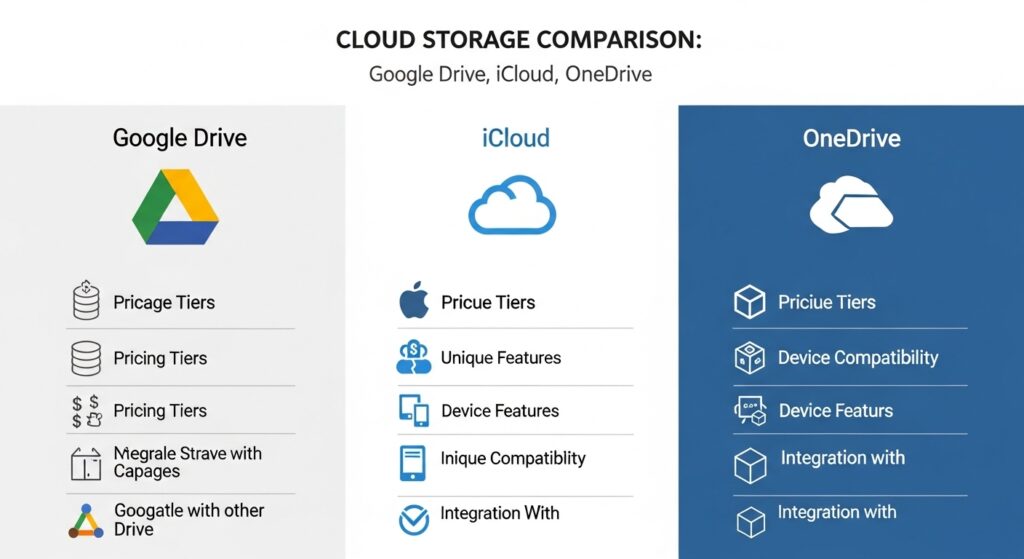
In 2026, three platforms dominate the personal and small business cloud storage market — Google Drive, Apple iCloud, and Microsoft OneDrive. Each is powerful, reliable, and backed by one of the world’s largest technology companies. Each is also optimized for a specific ecosystem, a specific type of user, and a specific set of priorities, which means choosing the wrong one for your situation can leave you paying for features you do not need while missing the integrations that would genuinely transform how you work.
In this guide, you will learn exactly what each platform offers, how they compare across every dimension that matters for real users, how to choose the right one for your specific devices and workflow, and how to get the maximum value from whichever platform you select. Whether you are setting up cloud storage for the first time or reconsidering a platform you have been using for years without fully understanding its capabilities, this guide will give you the clarity to make a confident, informed decision.
What Cloud Storage Is and Why Every Person and Business Needs It in 2026
Before comparing the three platforms, it is worth establishing precisely what cloud storage does — because the term is used loosely enough that its specific practical benefits are not always clearly understood.
The Core Function — Access From Anywhere, On Any Device
Cloud storage works by synchronizing your files between your local device and remote servers maintained by the storage provider. When you save a document to your cloud storage folder, it is automatically uploaded to those remote servers, making it accessible from any other device connected to your account, regardless of where that device is located or whether it is the same device you originally used to create the file.
For my colleague, this would have meant that the proposal saved on her home laptop would have been automatically available on her phone, her tablet, or any web browser she could access, including the browser on the conference room computer, the moment she arrived at the client’s office. The file’s existence would not have been dependent on the physical presence of the specific device she created it on.
The Secondary Function — Protection Against Device Loss and Failure
Beyond accessibility, cloud storage provides genuine protection against the permanent data loss that occurs when a device is damaged, stolen, lost, or simply fails, which happens to everyone eventually, regardless of how careful they are.
A laptop stolen from a car, a phone dropped in water, a hard drive that fails without warning, these events are catastrophic for users whose files exist only locally on those devices, and entirely manageable for users whose files are continuously synchronized to cloud storage. The device can be replaced, and within minutes of signing into the new device, every file is accessible again as though nothing happened.
The Tertiary Function — Collaboration and Sharing
Modern cloud storage platforms do far more than simply store and synchronize files. They provide sophisticated tools for sharing files with specific people, collaborating on documents in real time with colleagues around the world, controlling access permissions at the folder and file level, and working simultaneously on the same document without version conflicts — capabilities that have fundamentally changed how teams work across organizations of every size.
Google Drive — The Most Versatile Platform for Most Users
Google Drive is the cloud storage platform with the broadest cross-platform compatibility, the most generous free storage tier, and the deepest integration with the productivity tools that the largest proportion of internet users already use daily.
Free Storage and Pricing Structure
Google Drive provides 15 GB of free storage shared across your entire Google account, encompassing files stored in Drive, email attachments in Gmail, and photos and videos stored in Google Photos. For most casual users, 15 GB represents a meaningful amount of free storage, enough to get started with cloud-based document storage, email management, and selective photo backup without any financial commitment.
When 15 GB proves insufficient, which it eventually does for most active users, Google offers expanded storage through its Google One subscription service. Plans begin at approximately $2.99 per month for 100 GB and scale through 200 GB at $3.99 per month, 2 TB at $9.99 per month, and several larger tiers for users with extensive storage needs. Google One subscriptions include the ability to share storage allocation with up to five family members, making the higher-tier plans particularly cost-effective for households where multiple people need meaningful cloud storage capacity.
The Google Workspace Integration Advantage
Google Drive’s most compelling differentiator from its competitors is its seamless integration with Google Workspace — the suite of browser-based productivity applications that includes Google Docs, Google Sheets, Google Slides, Google Forms, and Google Meet. These applications are not simply companions to Drive, they are deeply embedded within it, allowing you to create, edit, and collaborate on documents directly within the Drive interface without opening any separate application.
Files created in Google Workspace applications, documents, spreadsheets, presentations — do not count toward your storage quota, which represents a significant practical advantage over competing platforms where every file consumes storage allocation regardless of its type or origin. A user who primarily works in Google Docs can theoretically maintain an unlimited number of documents within a free 15 GB account, using that storage exclusively for photos, videos, PDFs, and other non-Workspace files.
Real-time collaboration within Google Workspace is among the most mature and most capable available on any platform, multiple users can edit the same document simultaneously, with each collaborator’s cursor and changes visible to all others in real time, a complete version history that allows any previous state of the document to be restored, and granular sharing permissions that allow you to grant view-only, comment-only, or full editing access to specific individuals or anyone with the link.
Cross-Platform Accessibility
Google Drive is available as a native application on Windows, Mac, iOS, Android, and Chromebook — and as a web application accessible through any modern browser on any operating system without any installation required. This cross-platform universality makes Google Drive the most accessible option for users who work across multiple device types or operating systems, or who regularly need to access files from devices that are not their own.
For Windows users, the Google Drive for Desktop application creates a dedicated Drive folder in File Explorer, allowing you to access, open, and save files to Drive exactly as you would to any local folder, with automatic synchronization handling the cloud upload and download invisibly in the background.
Who Should Choose Google Drive
Google Drive is the strongest choice for users who already use Gmail and other Google services, who work on Android devices as their primary mobile platform, who collaborate regularly with others — particularly in educational or professional settings where Google Workspace is already the standard productivity suite, who want the most generous free storage tier, or who need to access their files from multiple different device types and operating systems. It is also the most compelling option for users whose primary file storage needs are documents and productivity files rather than large media collections.
Apple iCloud — The Effortless Choice for the Apple Ecosystem
Apple iCloud is designed with a philosophy that is fundamentally different from Google Drive and OneDrive, rather than being primarily a place you go to store files, iCloud is intended to be an invisible infrastructure layer that keeps your Apple devices synchronized automatically, requiring minimal conscious management from the user.
Free Storage and Pricing Structure
iCloud offers 5 GB of free storage — the smallest free allocation of the three platforms — shared across all iCloud services on your account, including device backups, photos, messages, and files. For iPhone users, 5 GB is typically exhausted quickly by a single device backup alone, meaning most iCloud users encounter the upgrade prompt relatively soon after setting up a new Apple device.
Apple’s iCloud+ paid plans begin at $0.99 per month for 50 GB — sufficient for most individual iPhone users who primarily want automatic device backup and basic photo synchronization. The 200 GB plan at $2.99 per month and the 2 TB plan at $9.99 per month support more extensive use cases, and all paid plans can be shared with up to five family members through Apple Family Sharing — making the cost per person on a shared plan very competitive.
The Seamless Apple Ecosystem Integration
iCloud’s defining strength — and the primary reason to choose it over competing platforms — is the depth and seamlessness of its integration with Apple hardware and software. On an iPhone, iPad, or Mac running current software versions, iCloud does not feel like a separate application or a deliberate workflow step. It feels like the natural behavior of the device itself.
iCloud Photos automatically uploads every photo and video taken on any of your Apple devices to iCloud in full resolution, then synchronizes that complete library across every other Apple device signed into your account, instantly. A photo taken on your iPhone is available on your Mac and iPad within seconds, without any manual transfer, cable connection, or deliberate upload action on your part.
iCloud Drive synchronizes files across devices in a similarly seamless way — with documents created in Apple’s Pages, Numbers, and Keynote applications automatically available across all your Apple devices through iCloud, and any files placed in your iCloud Drive folder on a Mac immediately accessible on your iPhone and iPad through the Files application.
The Continuity features built into Apple’s ecosystem — capabilities like Handoff, which allows you to begin a task on one Apple device and seamlessly continue it on another, and Universal Clipboard, which synchronizes your clipboard content across devices — are powered by iCloud’s underlying synchronization infrastructure, making iCloud not just a file storage solution but the connective tissue of an integrated multi-device Apple experience.
Privacy as a Differentiating Feature
Apple has made privacy a central and increasingly differentiating element of iCloud’s value proposition. Advanced Data Protection — available as an opt-in feature for iCloud accounts — extends end-to-end encryption to the majority of iCloud data categories, meaning that even Apple cannot access the encrypted content of your iCloud backups, photos, notes, and files. This level of encryption protection is significantly stronger than what competing platforms offer by default — and for users who consider data privacy a priority, it represents a meaningful differentiator.
iCloud on Windows — A Functional but Secondary Experience
Apple does provide a Windows iCloud application that brings iCloud Drive, iCloud Photos, and Apple Mail and Calendar synchronization to Windows PCs. The Windows experience is functional — it creates an iCloud Drive folder in File Explorer and synchronizes photos with Windows Photos — but it is noticeably less integrated and less seamless than the native macOS experience. Users who regularly work across both Mac and Windows will find the cross-platform experience more fluid with Google Drive or OneDrive.
Who Should Choose iCloud
iCloud is the strongest choice for users who are deeply embedded in the Apple ecosystem — iPhone, iPad, Mac, Apple Watch, and Apple TV — and who value effortless, automatic synchronization across those devices above all other considerations. It is particularly compelling for users who prioritize privacy, who value the tightest possible integration with iOS and macOS native features, and who primarily store photos and device backups rather than complex cross-platform document workflows.
Microsoft OneDrive — The Power Choice for Windows and Office Users
Microsoft OneDrive occupies a unique and often underappreciated position in the cloud storage market — it is the only platform whose value proposition includes not just storage but a complete, industry-leading productivity suite, making it the most cost-effective choice for users who need both.
Free Storage and Pricing Structure
OneDrive provides 5 GB of free storage with any Microsoft account, matching iCloud’s free tier and trailing Google Drive’s 15 GB. For users who need expanded storage, OneDrive’s standalone paid plans start at $1.99 per month for 100 GB, but the platform’s most compelling pricing story is not its standalone storage plans.
Microsoft 365 Personal — priced at $6.99 per month or $69.99 per year — includes 1 TB of OneDrive storage alongside the full Microsoft 365 application suite: Word, Excel, PowerPoint, Outlook, OneNote, and Teams. For any user who would purchase Microsoft 365 for its productivity applications regardless of their cloud storage decision, the 1 TB of OneDrive storage included in that subscription is effectively free — making OneDrive’s value proposition essentially unbeatable for this user group.
Microsoft 365 Family at $9.99 per month extends this to six users — each receiving their own 1 TB of OneDrive storage and their own full Microsoft 365 application access. For a family of four or five people who all use Microsoft Office applications, the per-person cost is extraordinarily competitive by any comparison.
Deep Windows Integration
On Windows computers — which remain the dominant operating system for professional and business computing, OneDrive is not a third-party application added to the operating system. It is a native component of Windows 10 and Windows 11, integrated directly into File Explorer with a dedicated sidebar location and automatic synchronization of designated folders without any additional installation required.
The Folder Backup feature — which can automatically synchronize your Desktop, Documents, and Pictures folders to OneDrive, is particularly valuable for Windows users because it means that the files in the locations most Windows users instinctively save to are automatically protected in the cloud without requiring any change in file-saving habits. Files saved to the Desktop or Documents folder on a Windows computer are automatically backed up to OneDrive and accessible from any other device — a genuinely seamless experience that requires zero behavioral change from the user.
Microsoft 365 Application Integration
For users who regularly work with Word documents, Excel spreadsheets, and PowerPoint presentations — which describes the majority of professional computer users, OneDrive’s integration with these applications transforms the cloud storage experience in ways that Google Drive and iCloud cannot replicate for this specific workflow.
Files saved to OneDrive from any Microsoft 365 application are automatically versioned — every saved state of the document is preserved, allowing you to roll back to any previous version at any point. AutoSave — a feature available for OneDrive-stored files in Microsoft 365 applications — saves your work continuously as you type, eliminating the risk of losing changes due to application crashes or unexpected shutdowns.
Real-time co-authoring in Microsoft 365 applications — multiple users simultaneously editing the same Word document or Excel spreadsheet with changes visible in real time, has matured significantly in recent versions and now provides a collaboration experience comparable to Google Workspace for most professional use cases.
OneDrive Personal Vault — Enhanced Security for Sensitive Files
Personal Vault is a protected section within OneDrive that requires additional identity verification to access, beyond your standard Microsoft account password. Supported verification methods include fingerprint, face recognition, a PIN, or a one-time code sent to your registered email or phone. Personal Vault is designed specifically for storing sensitive documents, passport scans, tax records, financial statements, legal documents, that warrant an additional layer of access protection beyond your standard account security.
Personal Vault automatically locks after a period of inactivity, defaulting to 20 minutes, and requires re-verification to unlock, ensuring that sensitive documents are not left accessible on an unattended device. This feature is unique among the three platforms compared in this guide and represents a meaningful security advantage for users who store sensitive personal or business documents in cloud storage.
Who Should Choose OneDrive
OneDrive is the strongest choice for users whose primary computing environment is Windows, who already subscribe to or plan to subscribe to Microsoft 365 for its Office applications, who work heavily with Word, Excel, and PowerPoint files in professional or academic settings, who want the strongest available integration between cloud storage and a Windows operating system, or who need enhanced security features for sensitive document storage through Personal Vault.
Side-by-Side Comparison — The Key Differences That Determine Your Choice
With each platform’s strengths and characteristics established, this direct comparison summarizes the key differentiating factors across the dimensions most relevant to real-world usage decisions.
Free Storage Allocation
Google Drive leads significantly with 15 GB of free storage — three times the 5 GB offered by both iCloud and OneDrive. For users who want to explore cloud storage without any financial commitment, Google Drive’s free tier is the most accommodating starting point by a considerable margin.
Paid Storage Value
Microsoft OneDrive delivers the strongest paid storage value for users who would subscribe to Microsoft 365 regardless, effectively providing 1 TB of storage as part of a productivity suite subscription that costs less than many competing standalone storage plans. Google One offers competitive per-gigabyte pricing with the additional benefit of family sharing across all tiers. iCloud+ pricing is competitive at lower tiers — particularly the 50 GB plan — but less distinctive at higher storage levels.
Device and Operating System Compatibility
Google Drive offers the most genuinely universal cross-platform experience, native applications for every major platform and a web interface accessible from any browser on any device. OneDrive offers excellent Windows integration and solid cross-platform applications, with its weakest experience on competing platforms being its iOS and macOS integration, functional but less seamlessly embedded than on Windows. iCloud offers an exceptional Apple device experience and a functional but secondary Windows experience, with limited meaningful Android integration.
Productivity Suite Integration
OneDrive and Google Drive both offer deep integration with powerful productivity suites, Microsoft 365 and Google Workspace respectively, making the choice between them for document-heavy users largely a question of which productivity applications you prefer and are most proficient with. iCloud integrates with Apple’s productivity applications, Pages, Numbers, and Keynote, which are capable and well-designed but less universally used in professional settings than either Microsoft 365 or Google Workspace.
Privacy and Security
Apple iCloud, particularly with Advanced Data Protection enabled, offers the strongest privacy protection of the three platforms — with end-to-end encryption that prevents even Apple from accessing the majority of your iCloud data. Microsoft OneDrive offers competitive security with the addition of the unique Personal Vault feature for sensitive document protection. Google Drive’s security is robust by standard measures, but Google’s business model, which is built substantially around advertising and data, means that privacy-oriented users are more likely to prefer Apple or Microsoft’s approach.
Collaboration Capabilities
Google Drive — through Google Workspace, offers the most frictionless real-time collaboration experience, particularly for users sharing documents with people who may be on any platform or operating system. Microsoft 365 via OneDrive offers increasingly capable collaboration tools that have narrowed the gap significantly in recent years and may be preferred by organizations already standardized on Microsoft applications. iCloud collaboration capabilities have improved but remain the least developed of the three for professional multi-user workflows.
How to Get the Maximum Value From Your Chosen Platform
Choosing the right cloud storage platform is the first step, but extracting its full value requires understanding and using several capabilities that many users never discover.
Enable Automatic Photo Backup Immediately
Every major cloud storage platform includes automatic photo backup capability, the ability to continuously upload every photo and video taken on your mobile device to the cloud without any manual action. This is one of the most immediately valuable cloud storage features available, and enabling it should be one of the first actions taken after setting up any cloud storage account.
On iPhone, enable iCloud Photos through Settings → Your Name → iCloud → Photos. On Android, enable Google Photos backup through the Google Photos application settings. On any platform, ensure the backup is configured to run over Wi-Fi to avoid consuming mobile data, and verify that the backup is running correctly by checking the backup status indicator within the application.
Set Up Selective Sync to Manage Local Storage
Most cloud storage desktop applications offer a selective sync feature that allows you to choose which folders are downloaded and stored locally on your device — keeping the cloud copy of large folders accessible through the application without consuming local storage space on your device’s drive.
This is particularly valuable on laptops with limited SSD storage — allowing you to maintain a complete cloud archive of all your files while keeping only the folders you actively need on a given day stored locally. Files not selected for local sync remain accessible on demand through the cloud application interface and can be downloaded when needed.
Use Version History to Protect Against Accidental Changes
All three platforms maintain version history for files stored in their cloud systems — preserving previous states of documents that can be restored if a file is accidentally overwritten, corrupted, or modified in ways you want to undo. Understanding how to access this version history for your specific platform gives you a powerful safety net against the kind of accidental data loss that local-only file storage cannot protect against.
In Google Drive, right-click any file and select Version history → See version history. In OneDrive, right-click any file and select Version history. In iCloud Drive, version history is accessible through the Browse All Versions option available for files created in iCloud-compatible applications.
Share Folders Strategically for Collaboration
Rather than sharing individual files for collaborative projects, share the parent folder containing all project-related files — giving collaborators access to the entire project context rather than individual documents in isolation. This approach keeps all project materials organized in one location, ensures collaborators always have access to the most current version of every file, and eliminates the administrative overhead of managing permissions for dozens of individual files.
Common Cloud Storage Mistakes to Avoid
Even regular cloud storage users consistently make these errors that undermine the protection and value their platform provides:
- Assuming files are backed up without verifying: Cloud storage synchronization can fail silently — due to storage quota exhaustion, application errors, or connectivity issues — without alerting you to the problem. Periodically verify that your cloud backup is actually running by checking the sync status indicator in your cloud storage application and confirming that recently created files are visible in your cloud account through a browser or secondary device.
- Storing sensitive files without additional security: Passwords, financial account details, identity documents, and other highly sensitive files warrant additional protection beyond standard cloud account security. Use your platform’s enhanced security features — OneDrive Personal Vault, iCloud’s Advanced Data Protection, or a dedicated encrypted notes application — rather than storing sensitive information in standard, unencrypted cloud storage folders.
- Sharing links without setting expiration dates: All three platforms allow you to share files via a link accessible to anyone who has it. Links created for temporary sharing purposes — sending a document to a client for review, sharing photos from an event — should have expiration dates set to automatically revoke access after the sharing purpose has been fulfilled. Permanent, unrevoked sharing links represent an ongoing privacy and security risk that most people create and immediately forget about.
- Not understanding what your free tier actually covers: Google Drive’s 15 GB covers Gmail storage, Drive files, and Google Photos. iCloud’s 5 GB covers device backups, iCloud Drive, and iCloud Photos. Understanding what consumes your free allocation prevents the unpleasant surprise of discovering your backup has stopped running because your quota was silently exhausted by a category of storage you did not realize was included in the limit.
- Using cloud storage as the only backup: Cloud storage is not a complete backup solution — it is a synchronization solution with backup characteristics. If you accidentally delete a file and do not notice for more than 30 days, it may be permanently gone from cloud storage as well. A complete backup strategy combines cloud storage with either an additional cloud backup service or a regular local backup to an external drive — the 3-2-1 backup rule recommends three copies of important data, on two different storage types, with one copy off-site. (For guidance on recovering files when backup systems have failed, check out our guide on [How to Recover Deleted Files from Your Computer or Phone: A Step-by-Step Tutorial].)
Conclusion and Final Thoughts
Google Drive, iCloud, and OneDrive are each genuinely excellent cloud storage platforms, reliable, secure, continuously improving, and backed by companies with the resources and motivation to maintain them at enterprise-grade standards for the foreseeable future. The choice between them is not a choice between a good option and inferior alternatives, it is a choice between three different excellent options, each optimized for a different ecosystem, a different primary use case, and a different set of user priorities.
Google Drive is the strongest choice for most users who want the best free tier, the broadest cross-platform accessibility, and the most capable collaboration tools, particularly those already using Android devices and Google Workspace applications. iCloud is the strongest choice for users committed to the Apple ecosystem who value effortless, invisible synchronization across multiple Apple devices and who prioritize privacy as a meaningful factor in their platform selection. OneDrive is the strongest choice for Windows users, Microsoft 365 subscribers, and anyone who works heavily with Office applications, delivering exceptional value and seamless integration for this substantial and specific user group.
My colleague, who arrived at that client meeting without her proposal, now uses Google Drive as her primary cloud storage, uploading every work document the moment she completes it, accessing her complete file library from her phone when she is away from her desk, and sharing project folders with clients directly from the Drive interface without ever worrying about whether the right version of the right file is on the right device. She has not had a file access emergency since.
That peace of mind, the genuine, concrete knowledge that your files are safe, accessible, and protected regardless of what happens to any individual device, is what cloud storage delivers. And at its most basic level, for most people, it costs absolutely nothing to begin.
Which cloud storage platform are you currently using — and has a file access emergency ever convinced you to change platforms or finally set up a backup system you had been putting off? Share your experience in the comments below. Whether you are setting up cloud storage for the first time or optimizing a system you have been using for years, your story could be exactly what another reader needs to make their own confident choice.