Last summer, my uncle handed me his laptop with a look of pure frustration on his face. “It takes ten minutes just to open Chrome,” he said. “I think it is broken.” I sat down with it, spent about forty-five minutes going through a straightforward maintenance routine, and handed it back to him running faster than it had in years. He was convinced I had performed some kind of technical miracle. I had not. I had simply done what most laptop owners never think to do, clean it up properly from the inside out.
A slow laptop is one of the most universally frustrating experiences in modern life. Whether you are trying to meet a work deadline, join a video call, or simply browse the internet in peace, a machine that crawls, freezes, or takes forever to load a basic application can push even the most patient person to their limit.
Here is the truth that most people do not realize: in the vast majority of cases, a slow laptop is not broken. It is simply neglected. Just like a car needs regular oil changes and tire rotations to perform at its best, your laptop needs periodic maintenance to stay fast, stable, and reliable.
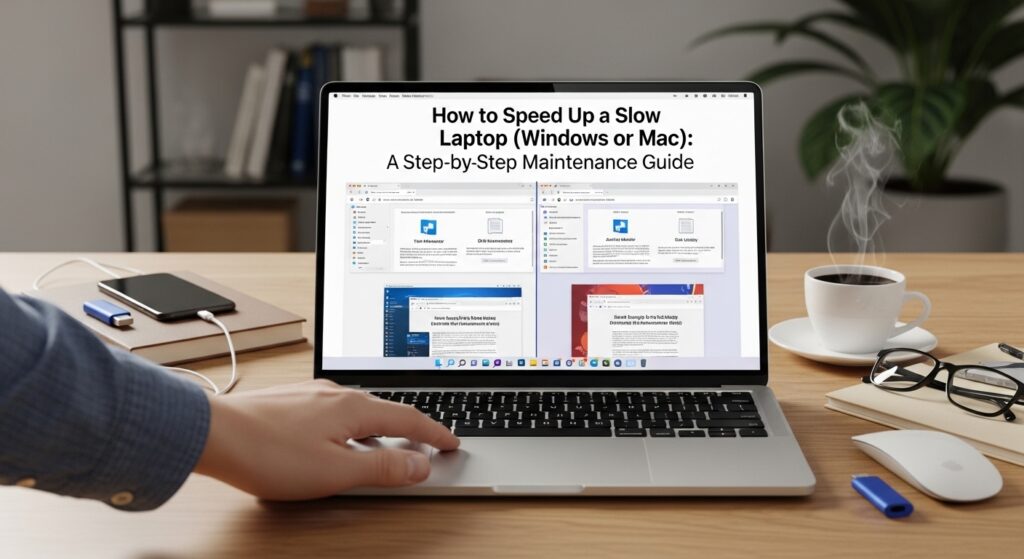
In this step-by-step guide, you will learn exactly how to speed up both a Windows and a Mac laptop using proven maintenance techniques that require no technical expertise and cost absolutely nothing. By the time you finish reading and applying these steps, your laptop should feel noticeably faster, more responsive, and significantly more pleasant to use every single day.
Why Laptops Slow Down Over Time
Before we get into the fix, it helps to understand the cause. Laptops do not slow down randomly or without reason. There are specific, well-understood processes happening behind the scenes that gradually degrade performance over time.
The most common culprit is startup bloat — the accumulation of programs that automatically launch every time you turn on your laptop, consuming memory and processor power before you have even opened a single application. Every piece of software you install tends to add itself to your startup sequence whether you asked it to or not.
The second major cause is storage overload. When your hard drive or solid-state drive fills up beyond roughly 80 to 85 percent of its total capacity, your operating system begins to struggle. It needs free space to create temporary files, manage virtual memory, and perform routine background operations. A nearly full drive forces the system to work significantly harder to do everything.
The third cause is fragmented or corrupted system files, outdated software that has not been patched in months, and the gradual buildup of browser cache, temporary files, and digital clutter that accumulates silently in the background with every hour of use.
The fourth and often overlooked cause is malware and unwanted background processes — software running silently in the background consuming your CPU and memory without your knowledge or consent.
Understanding these four causes makes the solution straightforward. Let us go through each fix step by step, starting with Windows.
Part One: How to Speed Up a Slow Windows Laptop
Step 1: Audit and Disable Startup Programs
The single most impactful thing you can do to speed up a slow Windows laptop takes less than five minutes and costs nothing.
Press Ctrl + Shift + Esc to open the Task Manager. Click on the Startup tab at the top. You will see a list of every program that launches automatically when Windows starts, along with a column showing its Startup Impact — rated Low, Medium, or High.
Go through this list carefully. Right-click on any program you do not need running the moment your laptop turns on — things like Spotify, Discord, Steam, Skype, OneDrive (if you do not use it regularly), and any other non-essential applications — and select Disable. You are not uninstalling these programs. You are simply telling Windows not to launch them automatically. You can still open them manually whenever you need them.
Removing high-impact startup programs alone can reduce boot time dramatically and free up significant memory for the applications you actually need.
Step 2: Run Windows Disk Cleanup
Windows has a built-in tool called Disk Cleanup that safely removes temporary files, cached web data, old Windows update files, and other digital debris that accumulates over time and consumes valuable storage space.
To access it, type Disk Cleanup into the Windows search bar and open the application. Select your primary drive (usually the C: drive) and let it scan. Once the scan is complete, check every category of files it offers to remove, then click Clean up system files for a deeper clean that includes old Windows update packages. These update packages can sometimes occupy several gigabytes of space on older systems.
Run Disk Cleanup once a month as part of your regular maintenance routine and you will keep your storage free of unnecessary clutter automatically.
Step 3: Adjust Your Power Plan Settings
This step surprises many people. Windows laptops are often set to a Balanced or even Power Saver power plan by default, which means Windows is intentionally throttling your processor speed to conserve battery life — even when your laptop is plugged into the wall.
To change this, type Power plan into the Windows search bar and select Choose a power plan. Switch to the High Performance plan when your laptop is plugged in and you need maximum speed. If High Performance is not visible, click Show additional plans to reveal it.
This single change can produce a noticeable improvement in processing speed, particularly on older laptops that have been running on Balanced or Power Saver mode for years without the owner realizing it.
Step 4: Check for Malware and Unwanted Background Processes
Malware — malicious software running silently in the background, is one of the most common and damaging causes of a slow Windows laptop. Some types of malware are specifically designed to use your processor and internet connection for purposes like cryptocurrency mining or sending spam emails, consuming your system resources around the clock without your knowledge.
Run a full scan using Windows Defender (built into Windows 10 and 11 at no cost) or a trusted third-party tool like Malwarebytes, which offers a free version capable of detecting and removing most common threats. Make this a monthly habit rather than a one-time fix.
After running the scan, open Task Manager again and click the Processes tab. Sort by CPU and Memory usage. If you see an unfamiliar process consuming an unusually high percentage of your resources, search its name online to determine whether it is legitimate or potentially harmful.
Step 5: Update Windows and All Your Drivers
Outdated software is a frequently overlooked performance issue. Windows Updates often include performance optimizations and bug fixes that directly improve system speed and stability, not just security patches.
Go to Settings → Windows Update and make sure your system is fully up to date. While you are there, visit Device Manager to check whether any hardware drivers, particularly your graphics card driver — have available updates. An outdated graphics driver in particular can cause significant slowdowns during everyday tasks like video playback and web browsing.
Step 6: Upgrade Your Hardware If Necessary
If you have completed every software optimization above and your laptop is still noticeably slow, the bottleneck may be physical hardware rather than software.
The two most impactful hardware upgrades for an older Windows laptop are adding more RAM (Random Access Memory) and replacing a traditional spinning Hard Disk Drive (HDD) with a Solid State Drive (SSD). Upgrading from an HDD to an SSD is the single most dramatic performance improvement you can make to an older laptop, boot times that once took two minutes can drop to under fifteen seconds after an SSD upgrade.
Before purchasing any hardware, check your laptop manufacturer’s website or a tool like Crucial’s System Scanner to confirm which upgrades are compatible with your specific model.
Part Two: How to Speed Up a Slow Mac Laptop
Mac users often assume that because macOS is a tightly controlled ecosystem, their laptops are immune to performance degradation. This is a myth. Macs slow down for many of the same reasons Windows laptops do, and the fixes are equally straightforward.
Step 1: Identify What Is Consuming Your Resources With Activity Monitor
The Mac equivalent of Windows Task Manager is Activity Monitor, found in Applications → Utilities → Activity Monitor. Open it and click the CPU tab to see which processes are currently consuming the most processing power.
If you notice any application consuming an unusually high percentage of CPU without an obvious reason, force quit it by selecting it and clicking the stop button at the top left of the Activity Monitor window. Click the Memory tab to do the same for RAM usage. This simple audit often reveals the specific app or process responsible for your Mac’s sluggish behavior immediately.
Step 2: Manage Login Items and Background Processes
The Mac equivalent of Windows startup programs is called Login Items — applications that launch automatically every time you log into your Mac account.
On macOS Ventura and later, go to System Settings → General → Login Items. On older versions of macOS, find this under System Preferences → Users & Groups → Login Items. Review the list and remove any applications you do not need running at startup by selecting them and clicking the minus button.
Pay particular attention to apps like Dropbox, Spotify, Microsoft Teams, Zoom, and any other communication or cloud sync tools that tend to add themselves to Login Items during installation without making it obvious that they are doing so.
Step 3: Free Up Storage Space on Your Mac
Apple builds a helpful storage management tool directly into macOS. Go to the Apple menu → About This Mac → Storage → Manage. This opens a panel with four categories of recommendations: Store in iCloud (moves infrequently accessed files to iCloud automatically), Optimize Storage (removes films and TV shows you have already watched), Empty Trash Automatically (deletes items that have been in the Trash for more than 30 days), and Reduce Clutter (helps you identify and delete large files you may have forgotten about).
Work through each of these recommendations systematically. Most Mac users discover gigabytes of recoverable storage during this process, old downloads, duplicate files, forgotten video projects, and application caches that have been quietly accumulating for years.
Step 4: Reset the SMC and PRAM/NVRAM
This step sounds more technical than it actually is, and it can resolve a surprising range of performance issues on older Mac laptops.
The SMC (System Management Controller) controls low-level hardware functions including battery management, thermal management, and fan behavior. Resetting it can resolve issues where your Mac runs abnormally hot, the fans spin loudly for no reason, or the system feels sluggish despite having adequate free resources.
For Intel-based Macs, shut down the laptop, then hold Shift + Control + Option + Power for ten seconds, release all keys simultaneously, and power the laptop back on normally.
For Apple Silicon Macs (M1, M2, M3, and M4 chips), simply shutting down the laptop completely and waiting thirty seconds before restarting achieves the equivalent reset automatically.
To reset PRAM/NVRAM on Intel Macs, restart the laptop and immediately hold Option + Command + P + R for about twenty seconds until you hear the startup sound twice. This resets stored settings related to display resolution, startup disk selection, and time zone that can occasionally cause performance irregularities.
Step 5: Reinstall macOS as a Last Resort
If your Mac is still performing poorly after completing every step above, a clean reinstall of macOS is the nuclear option that almost always restores factory-level performance to older machines.
Before doing this, make sure you have a complete backup using Time Machine or your preferred cloud backup solution. (For a full guide on backing up your data safely to the cloud, check out our article on [A Beginner’s Guide to Cloud Storage: Choosing Between Google Drive, iCloud, and OneDrive].)
To reinstall macOS, restart your Mac and hold Command + R during startup (on Intel Macs) to enter Recovery Mode. Select Reinstall macOS from the menu. On Apple Silicon Macs, hold the Power button during startup to access Recovery Mode. The reinstallation process preserves your personal files while refreshing the operating system itself, resolving most deep-seated software issues in the process.
Maintenance Habits That Keep Your Laptop Fast Long-Term
Fixing a slow laptop is satisfying, but keeping it fast requires building a few simple habits into your regular routine:
- Restart your laptop at least once a week. Many people leave their laptops in sleep mode for weeks at a time. A full restart clears temporary memory, applies pending updates, and resets background processes that have accumulated over time.
- Keep your storage below 80 percent capacity at all times. Set a reminder to check your available storage once a month and clear out files you no longer need before the drive fills up.
- Uninstall applications you no longer use. Every unused application takes up storage space and may have background processes or startup items still running. If you have not opened an app in three months, uninstall it.
- Keep your operating system and all applications updated. Updates deliver performance improvements and security patches simultaneously. Enable automatic updates wherever possible to ensure you never fall behind.
- Clean your laptop physically every six months. Dust buildup inside your laptop blocks the cooling vents and causes the processor to overheat and throttle its own speed to prevent damage. Use a can of compressed air to blow dust out of the vents regularly, and your laptop will run cooler and faster as a result.
Common Laptop Speed Myths Debunked
There is a lot of well-intentioned but incorrect advice floating around about how to speed up a slow laptop. Here are a few of the most persistent myths worth addressing:
Myth: You need to buy a new laptop when it gets slow. In the majority of cases, a slow laptop can be fully restored to excellent performance through software maintenance and modest hardware upgrades. Replacing a perfectly repairable machine wastes money unnecessarily.
Myth: Closing apps by swiping them away on your taskbar frees up memory. On modern operating systems, particularly macOS, force-closing apps you are not actively using does not necessarily improve performance and can actually slow things down if those apps need to reload from scratch the next time you use them. Let the operating system manage memory intelligently.
Myth: More browser extensions make your browsing experience better. Every browser extension you install runs as a background process and consumes memory. Audit your browser extensions regularly and remove any you do not use daily. This alone can dramatically improve browser speed on both Windows and Mac.
Myth: A factory reset always fixes a slow laptop. A factory reset removes your personal files along with any software issues, so it should always be a last resort after all other maintenance steps have been attempted. In many cases, the targeted fixes described in this guide will resolve the problem without requiring such a drastic measure.
Conclusion and Final Thoughts
A slow laptop is rarely a dead laptop. In almost every case, the sluggishness you are experiencing is the result of accumulated digital clutter, bloated startup programs, outdated software, or a storage drive that is simply too full to work efficiently, all of which are entirely fixable without spending a single penny.
For Windows users, the most impactful steps are disabling startup programs through Task Manager, running Disk Cleanup monthly, adjusting your power plan, and scanning for malware regularly. For Mac users, Activity Monitor, Login Items management, and the built-in Storage Management tool will address the vast majority of performance issues you are likely to encounter.
The maintenance habits outlined in this guide, weekly restarts, monthly storage checks, regular updates, and occasional physical cleaning, will keep your laptop performing at its best for years to come. Think of them not as occasional repairs but as a regular health routine for one of the most important tools in your daily life.
My uncle’s laptop, which he was convinced was broken beyond repair, is still running smoothly more than a year after that forty-five minute maintenance session. Yours can too.
Which of these steps made the biggest difference for your laptop, and how much faster is it running now? Share your results in the comments below. If you have a tip that is not on this list, we would love to hear it. Let us help each other get the most out of the devices we already own.



: A Step-by-Step Maintenance Guide)