I still remember the first week I transitioned to working remotely. I had deadlines scattered across sticky notes on my monitor, three different email threads trying to replace what should have been a five-minute office conversation, and absolutely no idea which task I was supposed to be focused on at any given moment. By Friday, I had missed two deadlines and somehow managed to attend the wrong video call.
If that experience sounds even slightly familiar, you are not alone.
Remote work has redefined the modern professional landscape in ways nobody could have fully predicted. In 2026, millions of people around the world are working entirely from home, from co-working spaces, or from a combination of both, and while the flexibility is genuinely life-changing, the challenge of staying organized, focused, and connected without a physical office structure is very real.
The good news is that the right productivity apps can completely transform the way you manage your remote work life. They replace the chaos of scattered notes and overflowing inboxes with clear systems that keep your tasks, projects, communications, and time all working together smoothly.
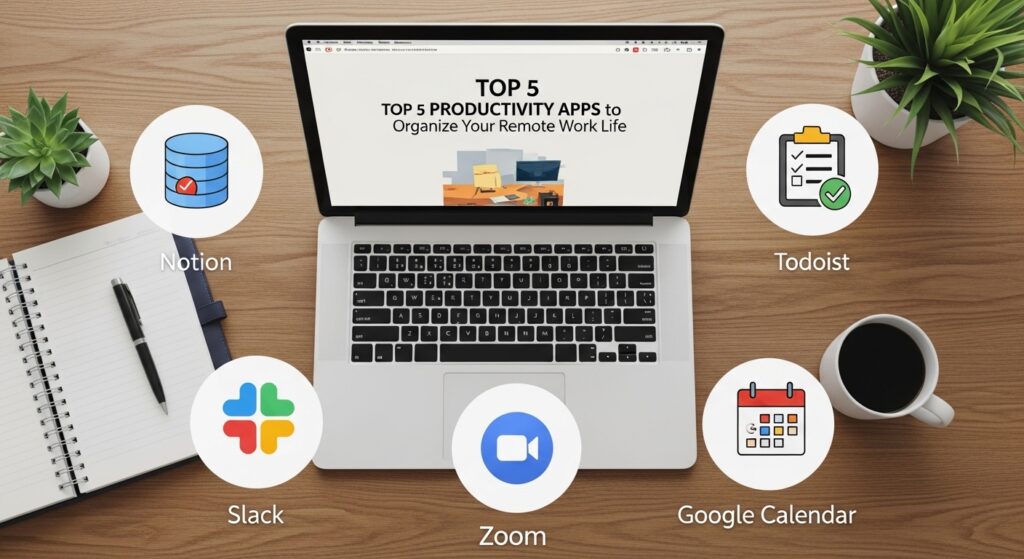
In this guide, you will discover the Top 5 productivity apps that remote workers around the world are relying on in 2026 to stay organized, meet deadlines, and protect their mental energy. We will cover what each app does, who it is best suited for, how much it costs, and exactly why it deserves a place on your device.
Why Remote Workers Need Dedicated Productivity Tools
Before we get into the list, it is worth understanding why generic tools like a basic to-do list or a standard email client simply do not cut it for remote work.
When you work in a physical office, a lot of organizational structure happens naturally and invisibly. You can see your colleagues, gauge their availability at a glance, have impromptu conversations that resolve confusion instantly, and physically separate your work environment from your personal space. Remote work strips all of that away and replaces it with a blank digital canvas that you have to deliberately structure yourself.
Without the right tools, remote workers commonly struggle with three core problems. The first is task overload — having so many things to do across so many different channels that nothing gets proper attention. The second is communication fragmentation — important information scattered across emails, text messages, voice notes, and different apps simultaneously. The third is time blindness — losing track of how long tasks actually take and consistently underestimating or overestimating how much can be accomplished in a day.
The five apps in this guide directly address each of these problems, and together they form a productivity system that can genuinely change your remote work experience from overwhelming to manageable.
App 1: Notion — Your All-in-One Digital Workspace
If there is one app that has genuinely revolutionized the way remote workers organize their entire professional and personal lives, it is Notion.
What Notion Does
Notion is best described as an all-in-one workspace that combines note-taking, project management, database building, and team collaboration into a single, deeply customizable platform. Think of it as a digital headquarters where you can store everything — meeting notes, project roadmaps, personal goals, client databases, content calendars, and weekly task lists — all in one place and all connected to each other.
Unlike traditional note-taking apps that simply let you write things down, Notion allows you to structure your information in multiple formats. You can view your projects as a simple list, a Kanban board, a calendar, a timeline, or a database table — and switch between views instantly depending on what you need to see at any given moment.
Why Remote Workers Love It
The reason Notion has built such a devoted following among remote workers is that it eliminates the need to juggle five different apps for five different purposes. Your meeting notes, your project tracker, your client database, and your personal journal can all live inside Notion, interconnected and searchable from a single interface.
Notion’s AI assistant, introduced in recent updates, can summarize long documents, generate first drafts of content, answer questions about information stored in your workspace, and help you brainstorm ideas — all without leaving the app.
Pricing
Notion offers a genuinely functional free plan for individual users that covers most personal productivity needs. The Plus plan starts at $10 per month for individuals who need unlimited file uploads and more advanced features, while team plans start at $15 per member per month.
Who Should Use Notion?
Notion is ideal for freelancers, content creators, project managers, and anyone who manages complex workflows across multiple clients or projects simultaneously. If you have ever felt like your brain has too many tabs open at once, Notion is designed specifically for you.
App 2: Todoist — The Cleanest Task Manager Available
While Notion is powerful precisely because of how much it can do, sometimes what you actually need is a focused, no-distractions task manager that does one thing brilliantly. That is exactly what Todoist delivers.
What Todoist Does
Todoist is a task management app built around one core philosophy: capturing every task you need to do, organizing it intelligently, and presenting it back to you in a clean, clear interface that makes it easy to know exactly what to work on next.
You can add tasks using natural language — typing something like “Submit project proposal every Friday at 3pm” will automatically create a recurring weekly task with the correct due date and time. Tasks can be organized into projects, assigned priority levels from 1 to 4, given labels for easy filtering, and broken down into subtasks for complex multi-step work.
Why Remote Workers Love It
One of Todoist’s most powerful features for remote workers is the Today view — a single screen that shows you every task due today across all your projects, giving you complete clarity on your priorities the moment you sit down to work each morning. No more opening five different project folders trying to piece together what needs your attention.
Todoist also integrates smoothly with almost every other major app in this list, including Google Calendar, Notion, Slack, and more than 60 other tools, meaning it can slot into whatever productivity system you already have without disruption.
Its Karma system — a built-in gamification feature that awards points for completing tasks on time — adds a surprisingly motivating element to what could otherwise feel like a relentless chore list.
Pricing
Todoist’s free plan is genuinely useful for basic task management. The Pro plan costs $4 per month (billed annually) and unlocks reminders, filters, calendar views, and productivity trend reports. For the price, it represents exceptional value.
Who Should Use Todoist?
Todoist is perfect for remote workers who feel overwhelmed by their task list and need a clean, distraction-free system to regain control. It is especially powerful for people who work across multiple projects or clients simultaneously and need a single trusted place to capture and prioritize everything.
App 3: Slack — The Remote Team Communication Standard
If you work remotely with a team — even a small one — there is a very high probability that Slack is already part of your daily life. And if it is not yet, it absolutely should be.
What Slack Does
Slack is a team messaging platform that organizes workplace communication into channels — dedicated spaces for specific topics, projects, teams, or departments. Instead of having project updates buried inside long email threads that are impossible to search or follow, Slack keeps every conversation organized, searchable, and immediately accessible.
You can create channels for anything — a channel dedicated to a specific client project, a channel for general team announcements, a channel for casual conversation, and a channel for technical support questions. Each channel maintains a complete, searchable history of every message ever sent in it, which means critical information is never lost in someone’s personal inbox.
Why Remote Workers Love It
The feature that makes Slack indispensable for remote teams is the way it replicates the informal communication of a physical office without the chaos of constant interruptions. Huddles — Slack’s lightweight audio and video call feature — allow you to jump into a quick voice conversation with a colleague in seconds, mimicking the experience of turning to someone at the next desk without scheduling a formal meeting.
Slack’s status feature lets you communicate your availability to your team at a glance — whether you are in a meeting, focused on deep work, away from your desk, or on vacation. This eliminates the frustration of sending messages into silence and not knowing whether someone is simply busy or has not seen your message yet.
For remote workers who struggle with the isolation of working alone, Slack genuinely recreates a sense of team presence and connection that purely email-based communication simply cannot provide.
Pricing
Slack’s free plan supports unlimited users and 90 days of message history, which is sufficient for small teams. The Pro plan costs $7.25 per user per month (billed annually) and unlocks unlimited message history, group calls, and workflow automation. For teams that communicate heavily, upgrading to Pro is well worth the investment.
Who Should Use Slack?
Slack is essential for anyone working remotely as part of a team, whether that team is two people or two hundred. It is also increasingly being used by freelancers who maintain ongoing relationships with multiple clients, using separate Slack workspaces for each client relationship.
App 4: Toggl Track — Master Your Time and Know Where It Goes
Here is an uncomfortable truth that most remote workers discover within their first few months: time is extremely difficult to manage when nobody is watching it for you.
In an office, your presence is visible. Your manager can see whether you are at your desk. Your colleagues provide a natural rhythm to the workday. Remote work removes all of that structure, and many people are genuinely shocked to discover, when they first start tracking their time, how little of their day is spent on genuinely productive, focused work.
Toggl Track solves this problem with elegant simplicity.
What Toggl Track Does
Toggl Track is a time-tracking app that lets you record exactly how long you spend on every task, project, and client throughout your workday. Starting a timer is as simple as clicking one button and typing what you are working on. When you switch tasks, you stop one timer and start another. At the end of the day, week, or month, Toggl generates detailed reports showing exactly where your time went.
Why Remote Workers Love It
The primary benefit of Toggl Track is not just billing accuracy for freelancers who charge by the hour — though it is exceptional for that purpose. The deeper benefit is self-awareness. When you see a report showing that you spent 3.5 hours in meetings, 1.2 hours on emails, and only 2.1 hours on actual creative or technical work in a given day, it becomes impossible to ignore the patterns that are draining your productivity.
That data becomes the foundation for making intentional changes — batching your emails into two designated windows per day, reducing meeting frequency, and protecting your most cognitively demanding work for the hours when you are at your sharpest.
Toggl Track also integrates with project management tools including Notion, Todoist, and Asana, allowing time entries to be linked directly to specific tasks and projects.
Pricing
Toggl Track’s free plan is remarkably generous, supporting unlimited time tracking for up to five users with access to basic reports. The Starter plan costs $9 per user per month and adds billable rates, project time estimates, and more detailed reporting dashboards.
Who Should Use Toggl Track?
Toggl Track is essential for freelancers billing clients by the hour, but it is equally valuable for any remote worker who suspects they are not spending their time as intentionally as they could be. If you regularly reach the end of a workday feeling busy but unproductive, Toggl will quickly show you exactly why.
App 5: Google Calendar — The Backbone of Your Remote Work Schedule
It might seem surprising to include Google Calendar on a list of top productivity apps when almost everyone already has access to it. But the difference between using Google Calendar casually and using it as a deliberate, strategic scheduling tool is the difference between a reactive workday and a proactive one.
What Google Calendar Does
At its core, Google Calendar is a scheduling and time management tool that allows you to organize your day, week, and month into clearly defined blocks of time. But in the hands of a remote worker who uses it intentionally, it becomes the master framework around which every other productivity tool in this list operates.
Why Remote Workers Love It
The most powerful technique remote workers use with Google Calendar is called time blocking — the practice of scheduling specific blocks of time for specific types of work, rather than simply listing tasks and hoping to get to them. Instead of starting your day with a vague to-do list, time blocking means your calendar shows a 9am to 11am block for deep focused work, an 11am to 11:30am block for email processing, a 1pm to 2pm block for meetings, and a 4pm to 5pm block for planning the next day.
This approach directly combats the most common remote work productivity killer: context switching — the mental energy drain that occurs when you constantly jump between different types of tasks without clear boundaries between them.
Google Calendar’s integration capabilities make it the connective tissue of your entire productivity system. It syncs with Todoist to display your task deadlines alongside your scheduled events. It connects with Slack to automatically update your status during scheduled focus blocks. It integrates with video conferencing tools to add meeting links automatically. For a free tool, its ability to tie your entire remote work system together is genuinely remarkable.
Pricing
Google Calendar is completely free with any Google account, making it accessible to every remote worker regardless of budget. Google Workspace business plans that include additional Calendar features start at $6 per user per month.
Who Should Use Google Calendar?
Every remote worker without exception. If you are not already using Google Calendar as a deliberate scheduling tool — not just a meeting holder — start today. The simple act of time blocking your workday with Google Calendar will produce a noticeable improvement in your focus and output within the first week.
(For tips on keeping your Google account and cloud files secure while working remotely, check out our guide on [A Beginner’s Guide to Cloud Storage: Choosing Between Google Drive, iCloud, and OneDrive].)
How to Build Your Remote Work Productivity Stack
Now that you know the five apps, the most effective approach is not to download all five simultaneously and try to figure them out at once. That path leads to overwhelm and abandoned apps.
Instead, build your productivity stack in stages:
Start with Google Calendar and spend one week practicing time blocking. This gives you a framework for your day before you add any other tools.
In week two, add Todoist to capture and organize every task that comes your way. Connect it to your Google Calendar so your deadlines appear alongside your scheduled blocks.
In week three, set up Toggl Track and spend two weeks simply observing where your time actually goes without judging or changing anything yet. Let the data speak.
Once you have a clear picture of your time, introduce Notion as your central workspace for notes, projects, and documentation. Start simple with a basic dashboard and expand as you grow comfortable.
Finally, if you work with a team or clients, set up Slack to consolidate your communications and reduce your dependency on email for ongoing conversations.
Common Remote Work Productivity Mistakes to Avoid
Even with the best apps at your disposal, these habits will undermine your efforts:
- Checking notifications constantly: Turn off non-urgent notifications during your deep work blocks. Every interruption costs you an average of 23 minutes of recovery time to return to full focus.
- Skipping your planning session: Spend the last 15 minutes of every workday planning tomorrow. Walking into your morning with a clear plan eliminates the decision fatigue of figuring out where to start.
- Using too many apps at once: More tools do not automatically mean more productivity. A simple system you actually use consistently beats a sophisticated system you abandon within two weeks.
- Never logging off: Remote work blurs the boundary between professional and personal time dangerously easily. Set a firm end time for your workday and protect it the same way you would a client meeting.
- Neglecting your physical environment: No productivity app can fully compensate for a chaotic, uncomfortable workspace. A dedicated, organized work area dramatically improves focus and signals to your brain that it is time to work.
Conclusion and Final Thoughts
Remote work offers extraordinary freedom, but that freedom demands extraordinary personal organization. The five apps covered in this guide — Notion, Todoist, Slack, Toggl Track, and Google Calendar — each solve a specific and real problem that remote workers face daily, and together they form a productivity system that is greater than the sum of its parts.
The most important thing to remember is that no app will organize your remote work life on its own. These tools are only as powerful as the habits and intentions you bring to them. Start small, build consistently, and give yourself permission to refine your system as you learn what works best for your specific work style.
My chaotic first week of remote work, the missed deadlines, the wrong video call, the sticky-note disaster, feels like a distant memory now. The right tools, used with intention, genuinely do make all the difference.
Which of these five apps are you already using in your remote work routine — and which one are you most excited to try? Share your current productivity setup in the comments below. Your tip might be exactly what a fellow remote worker needs to hear today.