Three years ago, I was six months into what I had confidently described to everyone who asked as my dream setup. I was working from home full time, I had converted the spare bedroom into a dedicated home office, and I had furnished it with the same casual enthusiasm I apply to most home decisions, a desk I liked the look of from a furniture catalogue, a chair I had sat in briefly at a showroom and found comfortable enough, a laptop positioned wherever it happened to land when I opened it, and a monitor I had purchased primarily based on screen size and price rather than any ergonomic consideration whatsoever.
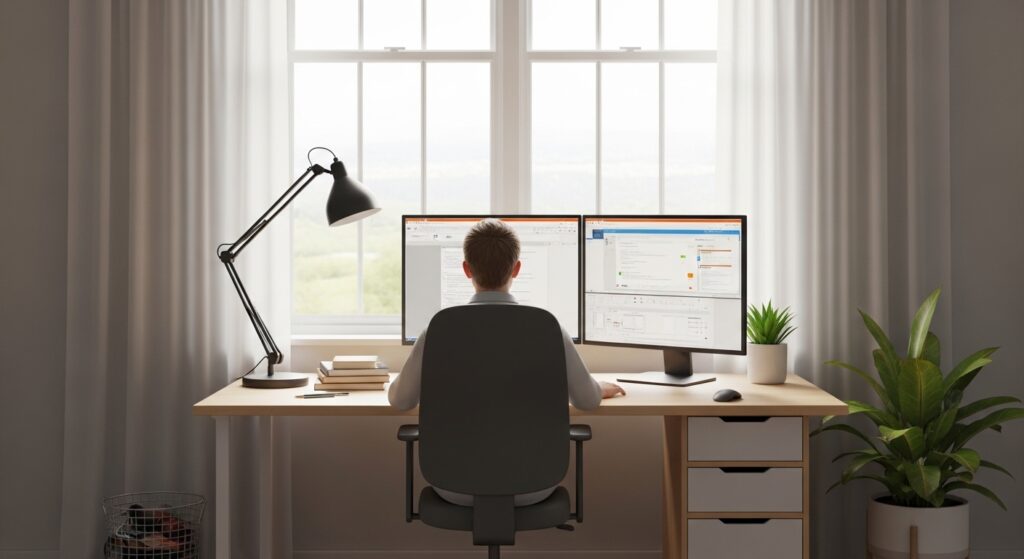
By month four, I had developed a persistent dull ache in my neck that arrived reliably by mid-morning and stayed until I stopped working. By month five, I was experiencing noticeable wrist discomfort during extended typing sessions. By month six, I had back pain that was affecting my sleep, my exercise routine, and my general quality of life in ways that were measurably reducing both my productivity and my wellbeing.
I was thirty-one years old, working at a standing desk height that was wrong for my body, in a chair that provided no meaningful lumbar support, looking at a monitor positioned six inches too low for my natural sightline, typing on a keyboard that kept my wrists in a position that a physiotherapist would later describe to me as “impressively sustained for someone your age.”
The physiotherapist visit that followed was educational in ways that my initial home office setup had entirely failed to be. I learned that the human body is not designed to maintain the postures that most knowledge workers maintain for eight or more hours a day, that the physical consequences of poor ergonomics compound gradually and invisibly until they reach a threshold that produces symptoms, and that addressing those consequences through equipment and positioning adjustments, once you understand what you are doing and why, is genuinely straightforward and surprisingly affordable.
I rebuilt my home office setup over the following three months, implementing the ergonomic principles my physiotherapist outlined and researching the specific tools that would support them. The neck pain resolved within two weeks. The wrist discomfort followed within a month. The back pain took approximately six weeks to fully resolve, but it resolved, and in three years of working in my properly configured ergonomic home office since that time, none of it has returned.
In this guide, you will learn exactly what ergonomic remote work setup means in practice, why it matters more than most people understand until they experience the consequences of getting it wrong, and specifically which tools, in every category from chair to keyboard to lighting, will genuinely support your health, your comfort, and your sustained productivity across a full career of remote work.
Why Ergonomics Is Not a Luxury but a Long-Term Career Investment
Before we get into the specific tools and recommendations, it is worth establishing clearly why ergonomic remote work setup deserves to be treated as a serious professional investment rather than an optional upgrade for comfort enthusiasts.
The Physical Consequences of Poor Ergonomics Compound Over Time
The most important thing to understand about ergonomic risk in remote work is that the consequences of poor setup do not announce themselves immediately. A poorly positioned monitor does not hurt on day one. An unsupportive chair does not cause back pain in the first week. A keyboard at the wrong height does not produce wrist symptoms after a month.
The consequences accumulate gradually and invisibly, in the form of muscular tension that the body compensates for through postural adjustments, in the form of repetitive strain that builds in tendons and joints through thousands of micro-stress events each day, and in the form of cumulative skeletal loading that the body manages silently until it cannot anymore. By the time the symptoms become noticeable enough to prompt action, the underlying physical changes have typically been developing for months.
This gradual onset is precisely why so many remote workers spend months in progressively worsening physical discomfort before connecting that discomfort to their work setup, and why the financial and time investment of proper ergonomic equipment is so much smaller than the cost of the physiotherapy, medical consultation, productivity loss, and reduced quality of life that inadequate setup eventually produces.
The Productivity Consequences of Discomfort Are Significant and Measurable
Beyond the physical health argument, there is a direct productivity argument for ergonomic remote work setup that is worth making explicitly. Physical discomfort is cognitively taxing. A persistent neck ache, wrist pain during typing, or back pain that builds through the afternoon does not simply cause physical discomfort, it consumes cognitive resources that would otherwise be available for the actual work you are trying to do.
Research on the relationship between physical comfort and cognitive performance consistently demonstrates that workers in physically comfortable environments perform better on tasks requiring sustained concentration, complex problem solving, and creative thinking than workers experiencing physical discomfort, even moderate discomfort that they have largely habituated to. The productivity cost of poor ergonomics is real, ongoing, and significantly underestimated by the workers experiencing it precisely because it is gradual and normalized rather than sudden and dramatic.
Tool 1, The Ergonomic Chair, Your Most Important Investment
If you can invest in only one ergonomic upgrade to your remote work setup, the chair deserves to be that investment. You will spend more time in your work chair than in any other piece of furniture in your life, and the quality and adjustability of that chair has more direct influence on your physical health during working hours than any other single element of your setup.
What Makes a Chair Truly Ergonomic
The term “ergonomic” is applied liberally and often misleadingly to office furniture, including chairs that have one or two adjustable features but lack the comprehensive adjustability and support that genuine ergonomic design requires. A truly ergonomic office chair must be adjustable across multiple dimensions to accommodate the specific proportions of the specific body using it, because no fixed-geometry chair, regardless of how thoughtfully it is designed, will fit the full range of human body shapes and sizes optimally.
The adjustability features that matter most are seat height, which should allow your feet to rest flat on the floor with your thighs approximately parallel to it, seat depth, which should allow approximately two to three finger-widths of space between the front edge of the seat and the back of your knees, lumbar support, which should be adjustable in height to align with the natural inward curve of your lower back rather than forcing a uniform position across all users, armrest height and width, which should allow your arms to rest with your shoulders relaxed and your elbows at approximately 90 degrees, and backrest recline, which should allow slight backward lean to reduce spinal compression during extended sitting.
Recommended Chair Options Across Budget Levels
The most consistently recommended ergonomic chairs by occupational therapists, physiotherapists, and workplace health specialists fall into several tiers that reflect the genuine relationship between price and ergonomic capability in this product category.
At the premium tier, the Herman Miller Aeron and the Steelcase Leap V2 are the most frequently cited best-in-class options by ergonomic specialists. Both offer comprehensive adjustability, exceptional lumbar support systems, and build quality designed for decades of daily use. Both are genuinely expensive, typically ranging from 1,200 to 1,800 dollars new, though certified refurbished versions are available at significantly lower prices from authorized dealers and represent excellent value for their ergonomic capability.
At the mid-range tier, the Secretlab Titan series, the Autonomous ErgoChair Pro, and the Branch Ergonomic Chair offer meaningful ergonomic adjustability at price points between 300 and 500 dollars that represent a reasonable compromise between ergonomic capability and budget constraint for workers who cannot justify premium chair investment.
At the entry level, the IKEA Markus and the Amazon Basics mid-back mesh chair offer modest ergonomic features at under 200 dollars that are meaningfully better than the dining chairs and casual seating that many remote workers default to when they have not deliberately invested in a work chair.
The Sitting Position Your Chair Should Enable
The target ergonomic sitting position that your chair should support is specific and worth describing precisely. Feet flat on the floor or on a footrest. Knees bent at approximately 90 degrees. Thighs parallel to the floor or sloping slightly downward. Lower back supported by the chair’s lumbar support in its natural inward curve. Upper back straight and supported. Shoulders relaxed, not raised or hunched. Elbows at approximately 90 degrees with arms resting on armrests or the desk surface. Eyes level with or slightly below the top of the monitor screen.
This position is not one of rigid tension. It is a position of supported, relaxed alignment that allows the musculoskeletal system to maintain healthy posture without the sustained muscular effort that unsupported positions require.
Tool 2, The Desk and Monitor Setup, Positioning Everything at the Right Height
The height and positioning of your desk, your monitor, and the relationship between them are the primary determinants of the neck, shoulder, and upper back posture you maintain throughout your working day, and getting this positioning right requires understanding the specific principles that govern healthy upper body ergonomics during computer work.
Desk Height and the Keyboard Position Principle
Your desk height should position your keyboard and mouse at a height that allows your upper arms to hang naturally at your sides, your elbows to bend at approximately 90 degrees, and your wrists to remain in a neutral, flat position during typing rather than flexed upward or angled downward.
For most people, this optimal keyboard height is somewhat lower than the standard desk height of most commercial furniture, which is designed for a wide range of users and therefore optimized for none of them in particular. If your current desk is too high for your specific body proportions, an adjustable desk, a keyboard tray that positions the keyboard below the desk surface, or a chair that can be raised sufficiently to bring your elbows to desk height with a footrest to compensate are all viable approaches to achieving the correct keyboard position.
The Case for a Sit-Stand Desk
Sit-stand desks, also called height adjustable desks or standing desks, are the single most impactful desk upgrade available for remote workers who spend extended periods at their workstation. They address the most significant ergonomic limitation of all fixed-height desks, which is that sitting in any position, however well supported and correctly aligned, for eight or more continuous hours produces physical consequences that regular postural change prevents.
The human body is designed for movement, and the postural monotony of extended sitting, even ergonomically correct sitting, produces muscular fatigue, reduced circulation, and spinal compression that alternating between sitting and standing throughout the day significantly reduces. Research on sit-stand desk use consistently demonstrates reductions in back pain, neck discomfort, fatigue, and the afternoon productivity decline that many sedentary workers experience as a reliable daily pattern.
The Flexispot E7, Uplift V2, and Autonomous SmartDesk Pro are among the most consistently well-reviewed motorized sit-stand desks at mid-range price points between 400 and 700 dollars. The IKEA Bekant and Flexispot E2 offer more modest height adjustment capability at lower price points for workers whose primary need is the ability to occasionally stand rather than seamlessly alternate between positions throughout the day.
Monitor Positioning for Neck and Eye Health
The position of your monitor relative to your eyes is the primary determinant of the neck posture you maintain during computer work, and it is an aspect of home office setup that an overwhelming proportion of remote workers have never deliberately addressed.
The optimal monitor position places the top edge of the screen at or slightly below your natural eye level when seated in your ergonomic position, at a distance of approximately 50 to 70 centimeters from your eyes, and directly in front of you rather than to one side. This positioning allows you to look at the center of the screen with a slight natural downward angle of approximately 10 to 20 degrees, which is the gaze angle that produces the least strain on the cervical muscles that support your head.
A laptop screen used directly on a desk is almost always positioned significantly too low for this optimal gaze angle, which is why extended laptop use without an external monitor or a laptop stand almost universally produces neck discomfort in workers who use it as their primary screen. A laptop stand that raises the screen to monitor height, combined with an external keyboard and mouse, transforms a laptop into an ergonomically appropriate workstation for a cost of approximately 30 to 60 dollars.
An adjustable monitor arm, which allows you to position your monitor at the precise height, distance, and angle that your specific body proportions require, is one of the most ergonomically impactful and most consistently undervalued accessories in the remote work setup category. Well-reviewed options from Ergotron, Amazon Basics, and VIVO are available at price points between 30 and 150 dollars and provide a range of adjustability that a fixed monitor stand cannot match.
For workers who use dual monitors, positioning the primary monitor directly in front of you and the secondary monitor to the side at the same height, rotated slightly toward you, prevents the asymmetric neck rotation that side-by-side dual monitors of equal use frequency produces over extended working sessions.
Tool 3, Keyboard and Mouse, Protecting Your Wrists and Hands
The keyboard and mouse you use for computer work are the tools your hands and wrists interact with for the greatest number of repetitions of any activity in your professional life. The ergonomic design of these tools, and the positioning habits that govern how you use them, have direct consequences for the health of the tendons, muscles, and joints of your hands, wrists, and forearms across a career of daily use.
Why Standard Keyboards Create Ergonomic Risk
Most standard keyboards position the hands in a configuration that requires the wrists to rotate outward, a posture called ulnar deviation, and to maintain a slight upward flex, called wrist extension, during typing. These positions are not acutely damaging in short sessions but produce cumulative strain in the tendons and muscles of the forearm during extended typing because they require sustained muscular effort to maintain rather than allowing the hands to rest in their natural neutral position.
The neutral hand position, the position your hands naturally adopt when hanging relaxed at your sides or resting on a flat surface, has the palms facing slightly inward rather than fully downward. Standard flat keyboards require a rotation away from this neutral position that, sustained across hours of daily typing, produces the conditions that contribute to repetitive strain injuries including carpal tunnel syndrome, tendinitis, and the generalized wrist and forearm discomfort that many remote workers experience as a normal feature of their working day when it is, in fact, a preventable consequence of keyboard design and positioning.
Split and Ergonomic Keyboard Options
Split keyboards address the ulnar deviation problem by dividing the keyboard into two halves that can be positioned at shoulder width, allowing each hand to type in a more naturally aligned position relative to the forearm. The Kinesis Freestyle2, the Microsoft Sculpt Ergonomic Keyboard, and the Logitech Ergo K860 are among the most widely used split keyboard options at various price and capability levels, ranging from approximately 40 dollars for the Microsoft Sculpt to 280 dollars for advanced mechanical split keyboards from manufacturers like ZSA and Dygma.
Ergonomic contoured keyboards like the Kinesis Advantage2 take ergonomic key positioning further, curving the key surfaces into a dish shape that reduces finger extension during typing and incorporates thumb key clusters for the most commonly used modifier keys. These keyboards have a significant learning curve for touch typists accustomed to standard layouts but are among the most highly regarded ergonomic keyboard options by users who have made the adaptation.
If a specialized ergonomic keyboard is not within your current budget or interest level, the most impactful improvement available for a standard keyboard is ensuring it is positioned flat or with a slight negative tilt, tilting slightly away from you rather than toward you as the fold-out feet on most keyboards encourage. This negative tilt reduces wrist extension during typing and is achievable with a standard keyboard through positioning adjustments that cost nothing.
Mouse Ergonomics and Vertical Mouse Options
The standard horizontal mouse position requires the forearm to rotate to a palm-down position called pronation, a rotation that creates sustained muscular tension in the forearm muscles when maintained for extended periods. Vertical mice, which position the hand in a handshake orientation with the thumb upward, allow the forearm to maintain a neutral rotation during mouse use and significantly reduce the muscular loading associated with extended standard mouse use.
Well-reviewed vertical mouse options include the Logitech MX Vertical, priced at approximately 100 dollars, and more affordable alternatives from Anker and Delux at 30 to 50 dollars. The adaptation period to vertical mouse use is typically one to two weeks for users accustomed to standard mice, and the majority of users who make the transition report meaningful reductions in forearm and wrist discomfort within the first month of consistent use.
A wrist rest used during typing pauses, and specifically not during active typing when it raises the wrist and increases extension, provides a resting position for the wrists between typing bursts that reduces the muscular fatigue of extended sessions. Gel-filled wrist rests from Kensington and Fellowes are available at 15 to 30 dollars and represent a modest investment for a meaningful comfort improvement.
Tool 4, Lighting, Preventing Eye Strain and Fatigue
Lighting is one of the most commonly overlooked dimensions of remote work ergonomics, and one whose impact on daily wellbeing and sustained productivity is significantly underestimated by the majority of remote workers who have never deliberately addressed it.
The Eye Strain Problem in Remote Work
Digital eye strain, also called computer vision syndrome, is a constellation of symptoms including eye fatigue, dryness, blurred vision, headaches, and neck pain that results from extended periods of focused visual work at a screen. It affects a majority of people who work at computers for extended periods and is significantly influenced by the lighting conditions under which that computer work occurs.
The primary lighting-related causes of digital eye strain are excessive screen brightness relative to the ambient light in the room, glare from windows or overhead lights reflected in the monitor screen, and insufficient overall ambient light that causes the eyes to work harder to focus and adjust. Addressing these causes through deliberate lighting management produces measurable reductions in eye strain symptoms and the associated productivity decline that visual fatigue causes.
Natural Light Positioning for Remote Workers
Natural light is the ideal light source for a home office environment, providing full-spectrum illumination that is psychologically and visually superior to artificial light for extended work sessions. The critical principle of natural light positioning is that windows should be to the side of your workstation, not directly in front of or directly behind you.
A window directly in front of you creates a bright background against which your screen must compete for your eyes’ adjustment, producing either an underlit screen that strains the eyes or a glare situation that creates reflections and discomfort. A window directly behind you creates direct glare reflections on your screen surface that produce significant visual discomfort. Windows positioned to your left or right provide natural illumination without these glare problems and are the positioning to seek when configuring your home office layout.
Artificial Lighting for Home Offices
When natural light is insufficient or unavailable, a combination of ambient overhead lighting and a dedicated desk lamp providing focused task lighting represents the most ergonomically sound artificial lighting approach for home office environments.
The desk lamp should be positioned to illuminate your work area without creating direct glare in your eyes or reflective glare on your screen surface. A lamp with adjustable color temperature, allowing you to shift between warm light in the morning and neutral or cool daylight light during peak working hours, supports the natural light environment variation that maintains alertness and reduces the visual fatigue associated with extended exposure to single-temperature artificial light.
Bias lighting, positioning a strip of LED lighting behind your monitor that illuminates the wall behind the screen at a brightness level of approximately 10 percent of the screen’s brightness, reduces the contrast between the bright screen surface and the dark surrounding environment that causes the visual fatigue associated with extended screen use in dim rooms. Govee, Philips Hue, and Elgato all offer monitor backlighting products at 20 to 60 dollars that provide this benefit with various degrees of color control and smart home integration.
Monitor Settings for Eye Comfort
Beyond the physical lighting environment, your monitor’s own settings significantly influence the visual comfort of extended screen use. Calibrate your monitor’s brightness to match the ambient brightness of your room rather than defaulting to the maximum brightness that most monitors ship with. In a well-lit room, this typically means reducing brightness to 40 to 60 percent of maximum. In a dimly lit room, it may mean reducing it further.
Blue light filter modes, available as a software feature called Night Shift on Mac and iPhone, Night Light on Windows and Android, and as a hardware feature on many monitors, reduce the proportion of short-wavelength blue light emitted by your screen during evening hours. Blue light suppresses melatonin production and can interfere with sleep quality when screens are used in the hours before bedtime. Enabling blue light filtering after approximately 6pm represents a modest but evidence-supported improvement in sleep quality for workers who use screens in the evening.
Tool 5, Audio Setup, Headphones and Microphones for Professional Remote Communication
Remote work has made audio quality in professional communication more important than at any previous point in the history of office work. The shift to video conferencing as a primary medium for professional interaction means that the quality of your audio, how clearly you sound to colleagues, clients, and collaborators on calls, has become a direct component of your professional presentation in a way it was not when face-to-face communication was the default.
The Case for a Dedicated Microphone
The built-in microphones in laptops and the microphones integrated into standard headphone sets produce audio quality that is, in most cases, significantly lower than the quality achievable with even a modest dedicated microphone. The specific problems with built-in laptop microphones are their distance from the speaker’s mouth, their omnidirectional pickup pattern that captures keyboard noise, room echo, and ambient sound alongside the speaker’s voice, and their generally low-quality capsule components that are chosen for cost and size rather than audio fidelity.
A dedicated USB condenser microphone positioned appropriately close to your mouth produces dramatically clearer voice audio that reduces the cognitive effort your call participants must expend to understand you clearly, makes you sound more professional and authoritative in video conference contexts, and eliminates the background noise and echo problems that characterize built-in microphone audio in typical home environments.
The Blue Yeti, Rode NT-USB Mini, and Elgato Wave 3 are among the most widely used and most consistently recommended USB microphones for remote work communication at price points between 80 and 150 dollars. For workers whose primary communication need is clear voice on calls rather than high-fidelity recording, the Blue Snowball iCE at approximately 50 dollars and the HyperX SoloCast at approximately 60 dollars provide meaningful audio quality improvement over built-in options at modest investment levels.
Headphones and Headsets for Remote Work
The choice between headphones and a dedicated headset for remote work communication involves trade-offs between audio quality, call clarity, comfort for extended wear, and the versatility to serve both communication and focused work purposes.
Active noise cancelling headphones like the Sony WH-1000XM5, the Bose QuietComfort 45, and the Apple AirPods Pro serve dual purposes particularly effectively, providing the focus-supporting noise reduction that helps maintain concentration during deep work sessions and the microphone quality, though typically lower than a dedicated desk microphone, needed for clear call communication. For remote workers in environments with significant ambient noise, whether from shared living spaces, neighborhood activity, or household sounds, active noise cancelling headphones represent one of the highest-impact comfort and productivity investments available.
Dedicated call headsets from manufacturers like Jabra, Plantronics, and Logitech are specifically designed and optimized for extended voice call use, offering lightweight wearing comfort for all-day use, boom microphones positioned optimally for voice pickup, and audio tuning optimized for voice intelligibility rather than music reproduction. They are less versatile than quality headphones but represent the optimal audio solution for workers whose primary remote work audio need is extended call participation.
Tool 6, Productivity and Comfort Accessories That Complete Your Setup
Beyond the primary ergonomic tools covered above, several supporting accessories address specific aspects of remote work comfort and productivity that the major tools leave unaddressed.
Footrests for Workers Whose Feet Do Not Rest Flat
For workers whose body proportions result in their feet hanging above the floor even when the chair is set at the correct height for the keyboard position, a footrest provides the supported foot position that is necessary for the ergonomic sitting position described earlier. The Humanscale FM300 and the Fellowes Standard Footrest are well-reviewed options at 30 to 80 dollars that provide the adjustable-angle foot support that allows the full ergonomic sitting position to be maintained regardless of the height relationship between your body and your desk.
Document Holders for Reducing Neck Rotation
Remote workers who regularly reference physical documents or secondary screens while typing at their primary monitor frequently develop neck strain from the repeated rotation and refocusing required to move their gaze between their screen and the document. A document holder that positions the reference material at the same height and distance as the primary screen, to the side of the monitor in the same focal plane, eliminates this repeated neck rotation and refocusing effort.
Cable Management for a Clear and Functional Workspace
A cluttered desk surface covered in cables, adapters, and loose equipment is not purely an aesthetic problem. Physical clutter in a workspace creates cognitive friction that subtly increases the mental load of the work environment, and cable disorder is a practical safety concern when it creates tripping hazards or restricts movement around the workspace.
A combination of cable management clips, a cable management tray mounted under the desk, and cable ties to bundle and route cables cleanly costs 20 to 40 dollars and transforms the functional clarity of a home office workspace in ways that contribute to both the professionalism of video call backgrounds and the psychological orderliness of the daily work environment.
Plants and Personal Elements for Psychological Wellbeing
The research on the psychological impact of natural elements in work environments is consistent in demonstrating that the presence of plants, natural materials, and personally meaningful elements in a workspace produces measurable improvements in mood, stress levels, and sustained concentration compared to purely functional, sterile work environments.
Adding one or two plants to your home office, chosen for their compatibility with your available light conditions and your willingness to maintain them, represents a modest investment with genuine psychological returns that compound daily. The pothos, snake plant, and ZZ plant are among the most forgiving indoor plants for varied light conditions and irregular maintenance schedules, making them particularly appropriate for workers who want the benefit without the burden of high-maintenance plant care.
Common Remote Work Setup Mistakes to Avoid
Even workers who have made deliberate ergonomic investments consistently make these errors that undermine the effectiveness of those investments:
Buying ergonomic furniture and not adjusting it to fit their specific body. An ergonomic chair set at the wrong height, with lumbar support in the wrong position, and armrests at the wrong level provides little more ergonomic benefit than a standard chair. Every adjustable feature of every ergonomic tool you invest in should be calibrated specifically to your body proportions, and this calibration process should be done deliberately and methodically rather than accepted at the default settings the furniture arrives in.
Using a laptop directly on the desk without a stand, external keyboard, or external mouse. This is the single most common ergonomic mistake in remote work setups, and it is entirely understandable because laptops are designed for portable use and most people simply continue using them in their home office the same way they used them in coffee shops and on trains. But a laptop used directly on a desk forces a choice between correct monitor height and correct keyboard height that cannot be simultaneously achieved without external peripherals, and the compromise position most users default to, screen too low, keyboard roughly at desk height, is the primary cause of the neck, shoulder, and wrist problems that afflict a significant proportion of the remote workforce.
Sitting in the same position for the entire working day without movement breaks. Even the best ergonomic setup does not eliminate the physical consequences of postural monotony. Setting a timer to prompt a brief movement break every 45 to 60 minutes, standing up, walking to another room, performing a few shoulder rolls and neck stretches, maintains the circulation and muscular variation that prevents the fatigue and tension accumulation that extended static sitting produces regardless of how well-supported the sitting position is.
Neglecting the thermal environment of the home office. Temperature and air quality in the home office environment affect both physical comfort and cognitive performance in ways that most remote workers have never deliberately addressed. A workspace that is too warm reduces alertness and increases fatigue. A workspace that is too cool produces muscular tension and reduces fine motor comfort. The optimal cognitive performance temperature for most people is between 20 and 22 degrees Celsius, and maintaining the home office within this range during working hours, through combination of heating, cooling, and ventilation as the season requires, is a simple and genuinely impactful workspace optimization.
Conclusion and Final Thoughts
The neck pain, the wrist discomfort, and the back pain that accumulated over six months in my first home office were not the inevitable costs of remote work. They were the entirely preventable consequences of a workspace that had been assembled without understanding the ergonomic principles that determine whether a workspace supports or degrades the health of the person working in it.
The tools covered in this guide, an ergonomic chair adjusted precisely to your body proportions, a desk and monitor setup that positions your eyes and hands correctly, a keyboard and mouse that allow your wrists and forearms to work in neutral positions, lighting that supports visual comfort across a full working day, audio equipment that makes your professional communication clear and effective, and the supporting accessories that complete a genuinely functional workspace, form a complete ergonomic remote work setup framework that addresses every significant physical consequence of daily knowledge work.
None of these investments requires a single large expenditure. The most impactful ergonomic improvements, correct chair adjustment, monitor positioning, keyboard tilt, and lighting management, are either free or among the least expensive changes available. The higher-investment options, the sit-stand desk, the premium ergonomic chair, the external microphone, represent genuine long-term value when assessed against the productivity cost of discomfort, the medical cost of injury, and the career cost of the sustained physical limitation that inadequate setup eventually produces for workers who do not address it.
Your remote work career is likely to span decades. The workspace you work in every day of that career deserves the same deliberate, evidence-based investment that you would apply to any other tool that determines the quality and sustainability of your professional output.
Your body is the most important tool you own. Your workspace should be designed to protect it.
Which element of your current remote work setup do you consider your biggest ergonomic gap, and which of these tools are you planning to address it with first? Share your specific setup challenge in the comments below. Whether you are building your first dedicated home office or optimizing a setup you have been using for years, your experience could be exactly the practical guidance another remote worker needs to finally take their workspace ergonomics seriously.